Building MVP of an FAQ Management Tool
2025-03-12 our company has a hack day. Here’s the documentation log of what I’m building, using AI app building tools.
PHASE 1: GOALS & SCOPE
Problem
We make product or operational changes constantly but our FAQs and SOPs do not keep up with the pace of our changes.
Evidence
- We have various new currencies launched but FAQs still don't reflect those changes (sample link)
- Back and forth on asking about fees updates on Feb 2025 when updates were made in 2024
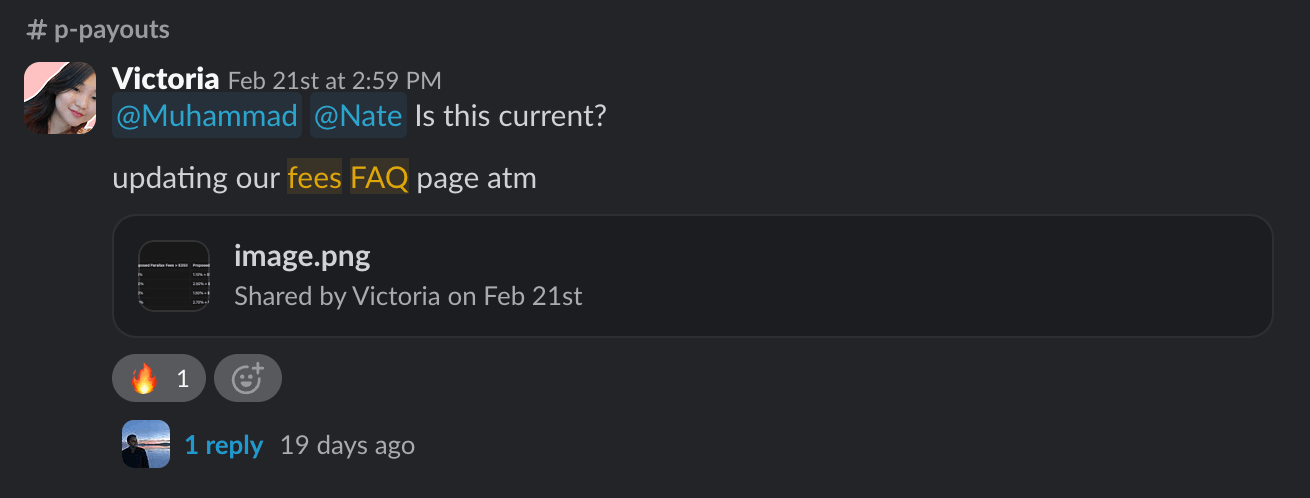
- Manual need to create & update FAQs -> takes up time when all this can be automated. Especially annoying when there is a BIG update (e.g. Thunder)



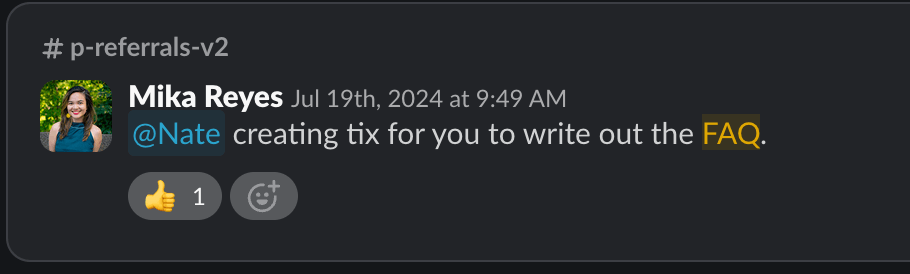

- Other companies not updating their documentation -> annoying

Proposed Solution
A way to track product updates or frequently asked questions from sources like support tickets and suggest regular updates to FAQs to keep documentation in sync.
MVP Scope & Implementation
- User can connect their current set of FAQ documents
- Input links on FAQ documentation to read from
- If time: Actually connect to Zendesk API
- User can import support tickets from last X days
- Connect to Zendesk API
- Import 7 days worth of tickets
- If time: Also allow the import of other documentation such as PRDs on Notion, tickets on Linear, or just plain text
- User will then see suggestions for 1) new FAQs that should be created; 2) edits to existing FAQs
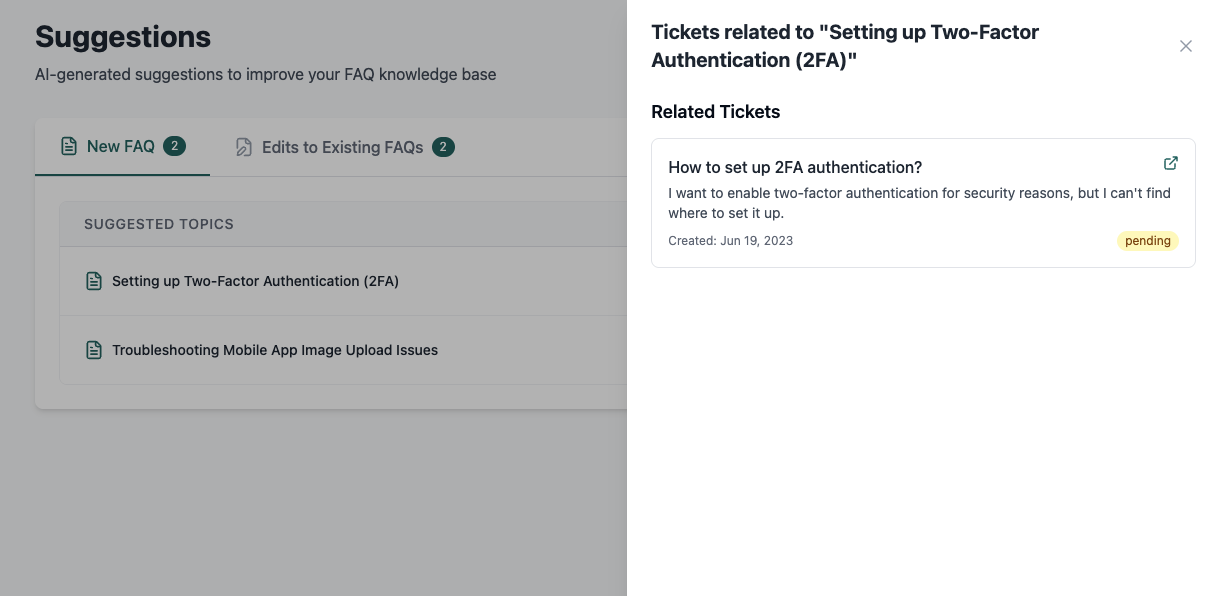
- New: Show list of new FAQs and suggested topic titles. When you click into the suggestion, it also previews all the support tickets with links out related to that suggested topic.
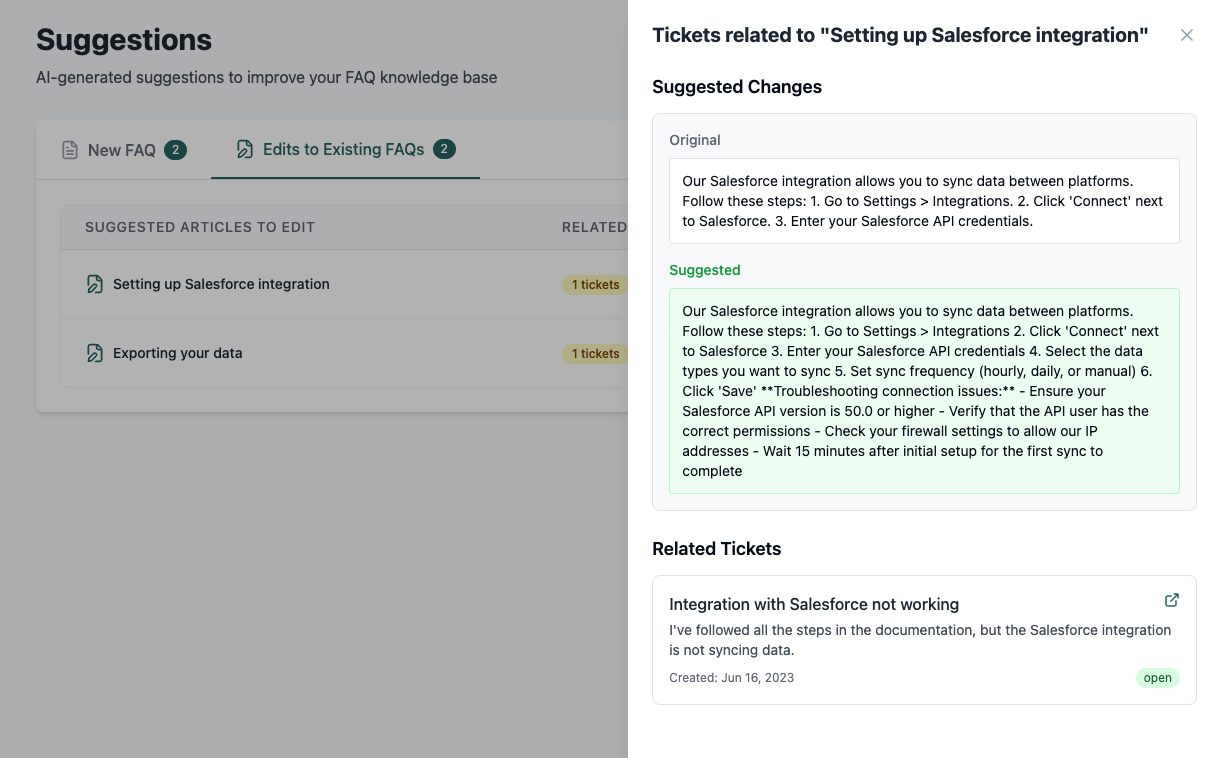
- Edits: Show list of all existing FAQs and which ones have potential to be edited. When clicked, it shows the diff highlighting what the suggested edits are. It also previews all the support tickets with links out related to the edits to that FAQ.
- If time: Merge or cut: Show list of FAQs that can be cut out
- Inspiration for UI: x.com/marty_kausas/status/1879748003013009764
- User can now add these suggestions to their knowledge base
- Easy copy/paste LEL
- If time: Add text editor for easy edits + push to connected Knowledge Base
PHASE 2: INITIAL PROMPT
Prompt with Lovable.dev
Build an AI-powered support knowledge manager that helps users refine and expand their FAQs based on actual support tickets.
Sidebar Menu with the following:
- Inputs (shows the "Inputs" section below)
- Suggestions (which shows the "Suggestions" section dashboard below)
Inputs section
- Connect Existing FAQ Documents
- Allow users to input links to their FAQ documentation. The system should scrape and extract content for analysis.
- (Stretch goal) Provide an option to connect directly to the Zendesk API to pull existing FAQ content.
- Import Support Tickets from the Last X Days
- Default: Import the last 7 days of support tickets from Zendesk.
- (Stretch goal) Allow importing from additional sources like:
- PRDs from Notion
- Tickets from Linear
- Plain text files (drag & drop upload)
- ChatGPT API Analysis
- After this, we will call the ChatGPT API and ask it to
- Look at the support tickets from the last 7 days and also look at the existing FAQ documents
- Based on support tickets, it must analyze if a NEW article needs to be created that was asked in support tickets that doesn't already exist in the knowledge base and if there are suggested edits to the existing FAQs. The output will be shown as below.
- After this, we will call the ChatGPT API and ask it to
Suggestions section
The main Suggestions dashboard then shows up after they completed the info in the Inputs tab, otherwise an empty state shows.
- Generate FAQ Suggestions & Edits with 2 sub tabs
- First Tab: "New FAQ"
- This tab shows a table with column headers "Suggested Topics", "Related Tickets", "Create Article"
- "Suggested Topics" shows the suggested title of the new Knowledge Base article that should be made
- "Related Tickets" shows the # of tickets that contributes to the mention of that suggested topic, analyzed by AI using ChatGPT API
- "Create Article" shows a button that when clicked, opens a large modal that allows the user to create an article based on that suggested topic. The modal then pops up and generates the contents of that topic. There is also a copy/paste button on this modal that, when clicked easily copy/pastes that article.
- When the line item on the table is clicked, a side drawer opens up that shows a preview of relevant support tickets that mentions that particular topic, line by line, previewing the subject of that support ticket (from zendesk) and a link to go to that support ticket on Zendesk
- Second Tab: "Edits to Existing FAQs"
- This tab shows a table with column headers "Suggested Articles to Edit", "Related Tickets", "Update"
- "Suggested Articles to Edit" shows the title of the existing Knowledge Base article
- "Related Tickets" shows the # of tickets that contributes to the editing of that suggested topic analyzed by AI using ChatGPT API
- When the line item on the table is clicked, a side drawer opens up that first shows the suggested edits to the article like a diff checker. After, it shows a preview of relevant support tickets that mentions that particular topic, line by line, previewing the subject of that support ticket (from zendesk) and a link to go to that support ticket on Zendesk
- "Update Article" shows a button that when clicked, opens a large modal that allows the user the text to the updated article. The modal then pops up and generates the contents of that topic. There is also a copy/paste button on this modal that, when clicked easily copy/pastes that article.
- First Tab: "New FAQ"
UI/UX Considerations
- Simple, intuitive dashboard
- A clean, card-based layout in light mode
- Any primary buttons or any are the color #276D6A
- Support tickets should be linked inline as cards for easy reference.
- For article creation or edits, use a side-by-side diff view to highlight suggested changes on the modal
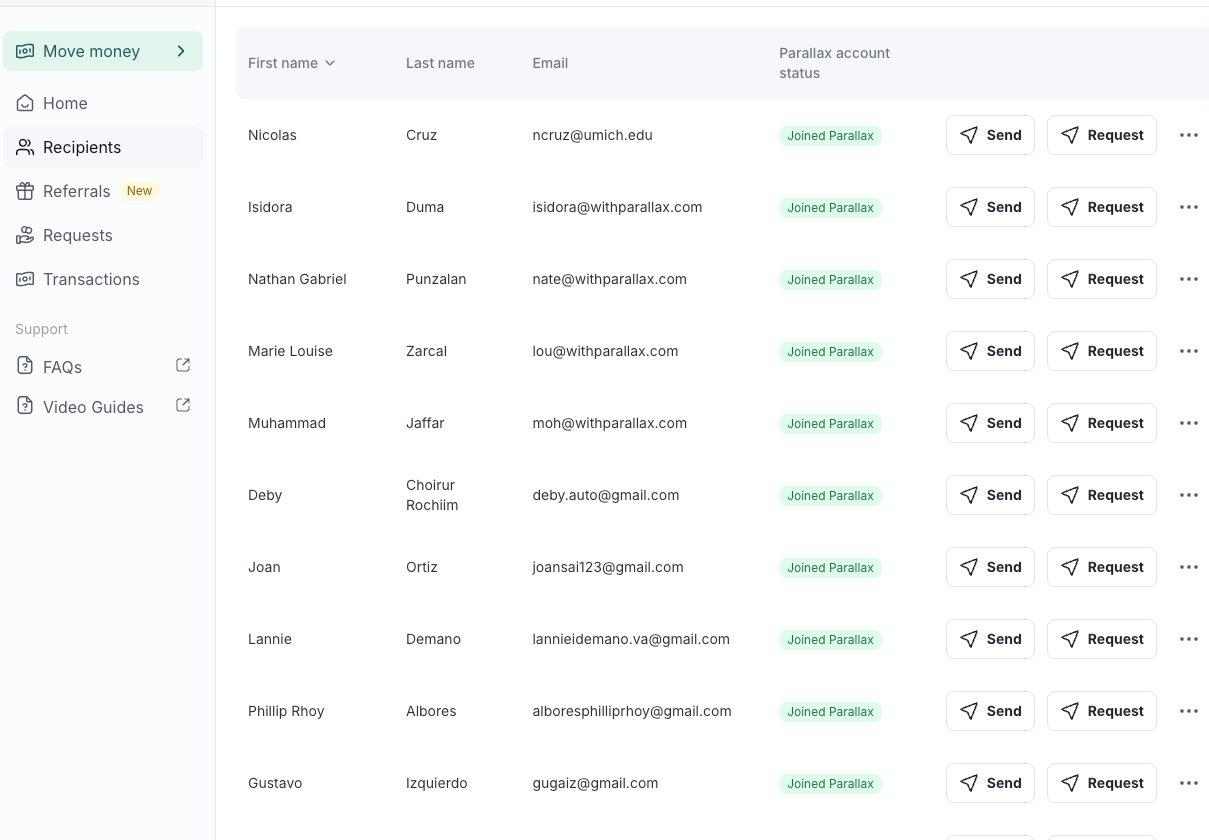
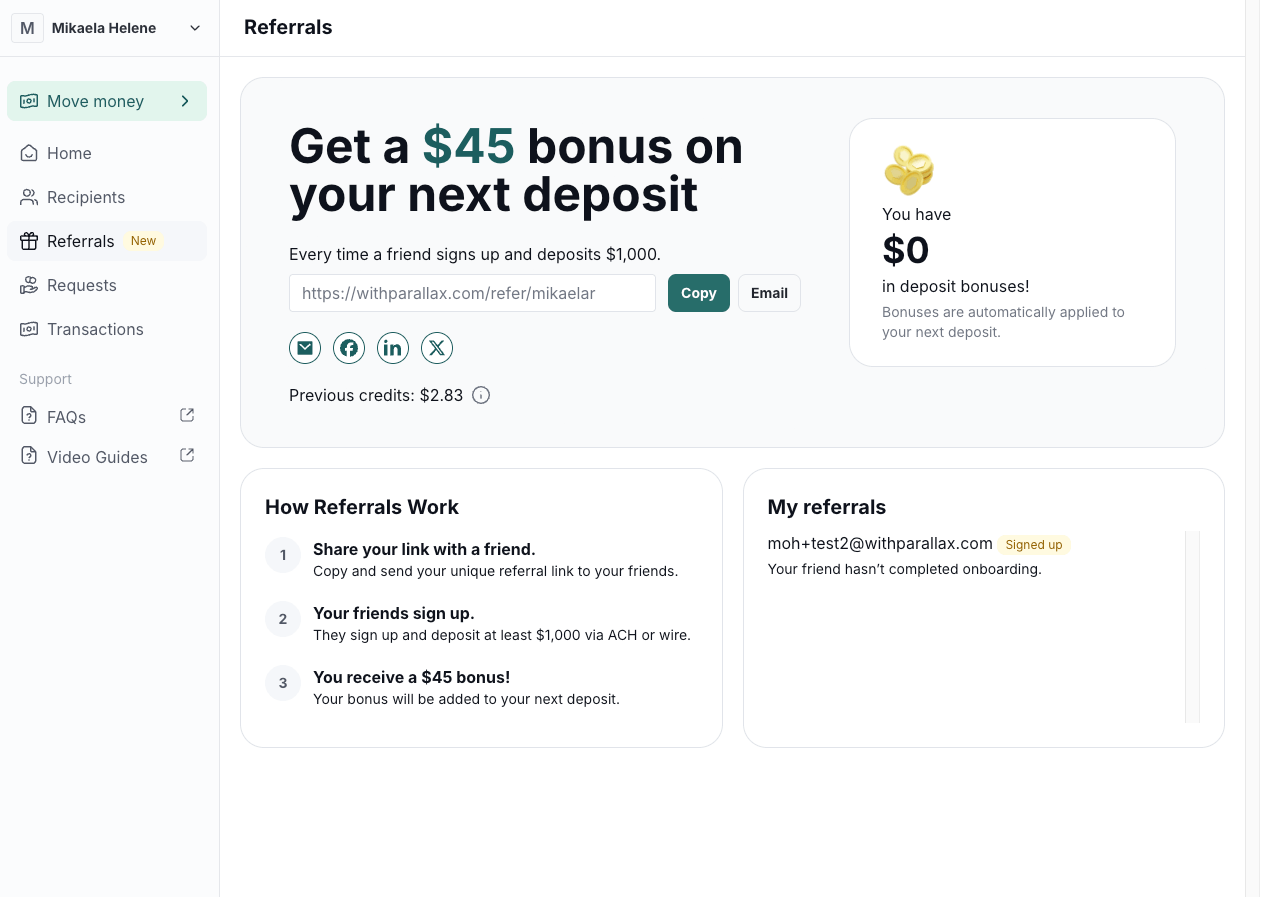
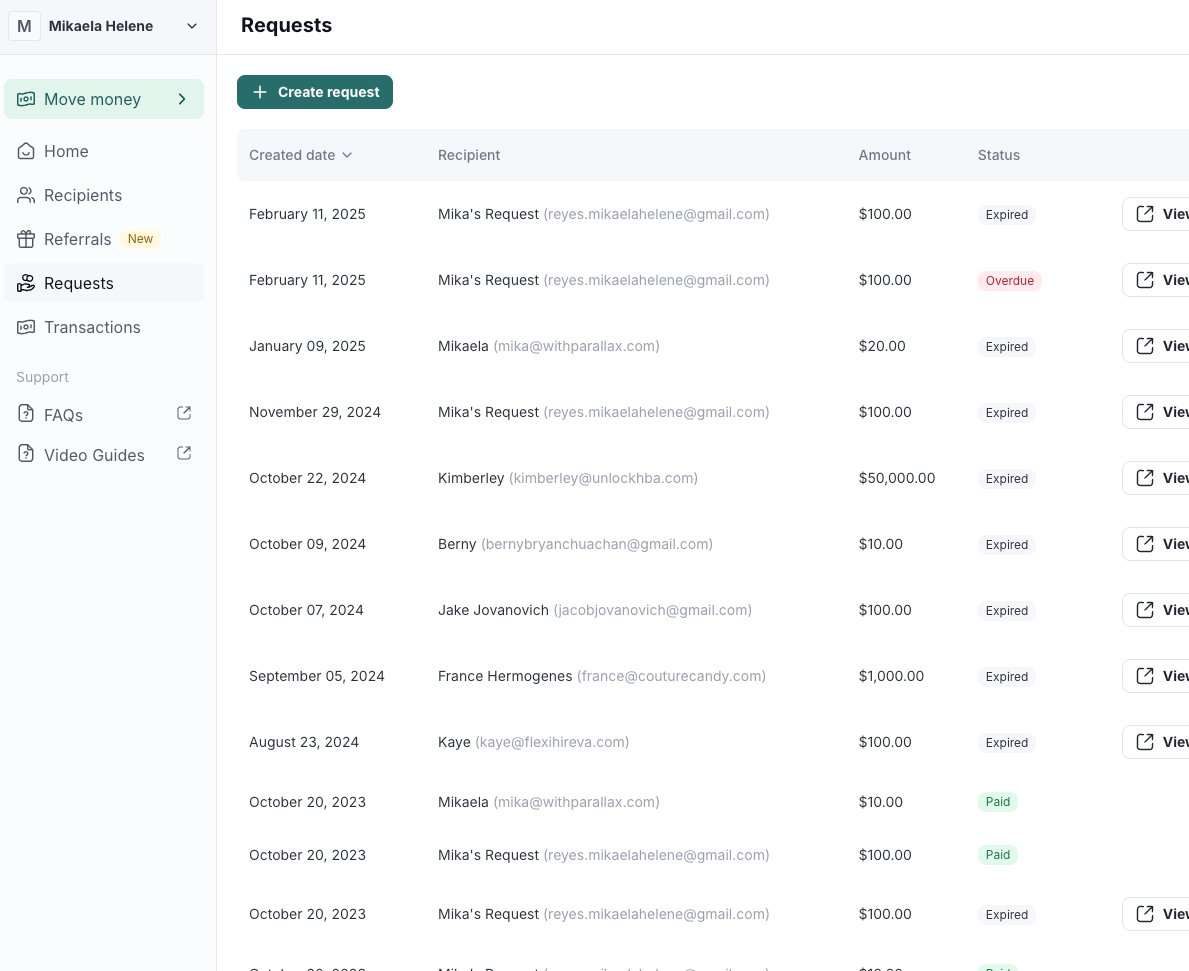
This app should prioritize automation and ease of use, reducing the manual effort needed to maintain a high-quality FAQ repository.
PHASE 3: REFINING WITH AI
Learnings
- If I want a backend, I should connect the backend off the bat. Lovable makes it easy with Supabase. I can also do authentication!
- Knowledge manager allows me to add universal prompts. Good for code templates or UI guidelines.
- Configure everything auth related upfront & make sure the database model is as expected → leads to many conflicts and errors.
- Sidebar and route navigation is weird, so be explicit about that.
- Initial: All items in the sidebar fall under index. Data from one route doesn’t necessarily persist. e.g. If I connect an integration on the /integrations page, it doesn’t persist in the index page.
- Desire: All items in the sidebar have their own route and data persists across the app.
Logs
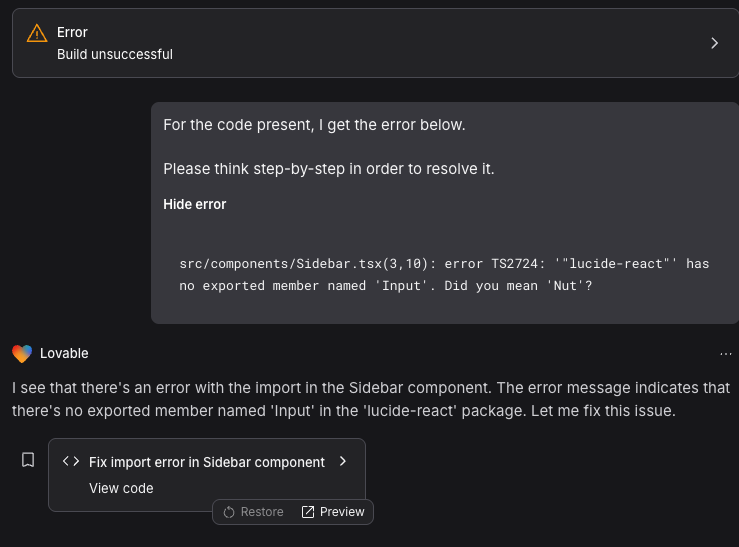
Output: First deployment - error!
- When deployed, it showed a blank white screen. There was an error so I asked Lovable to fix the error. That worked.
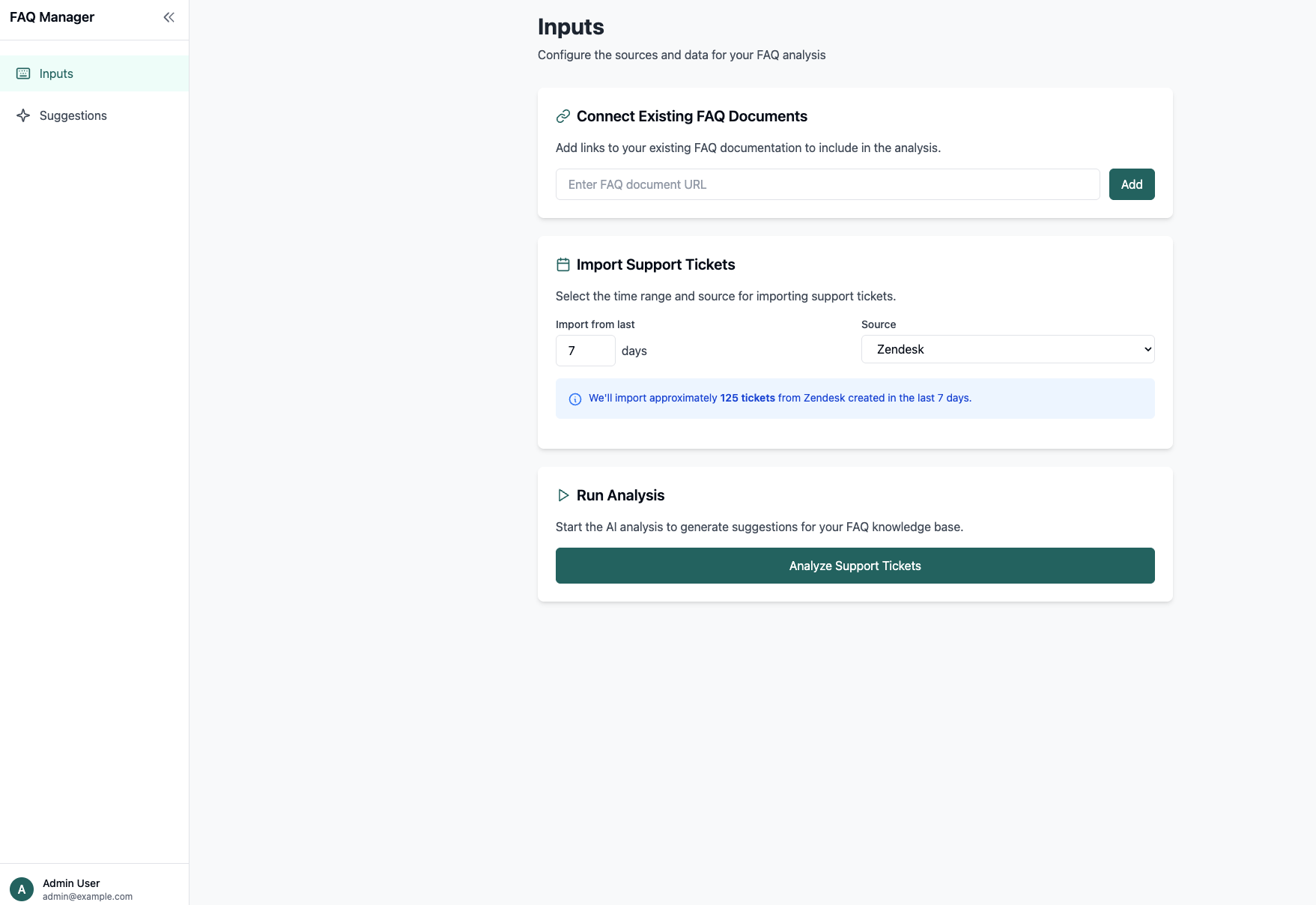
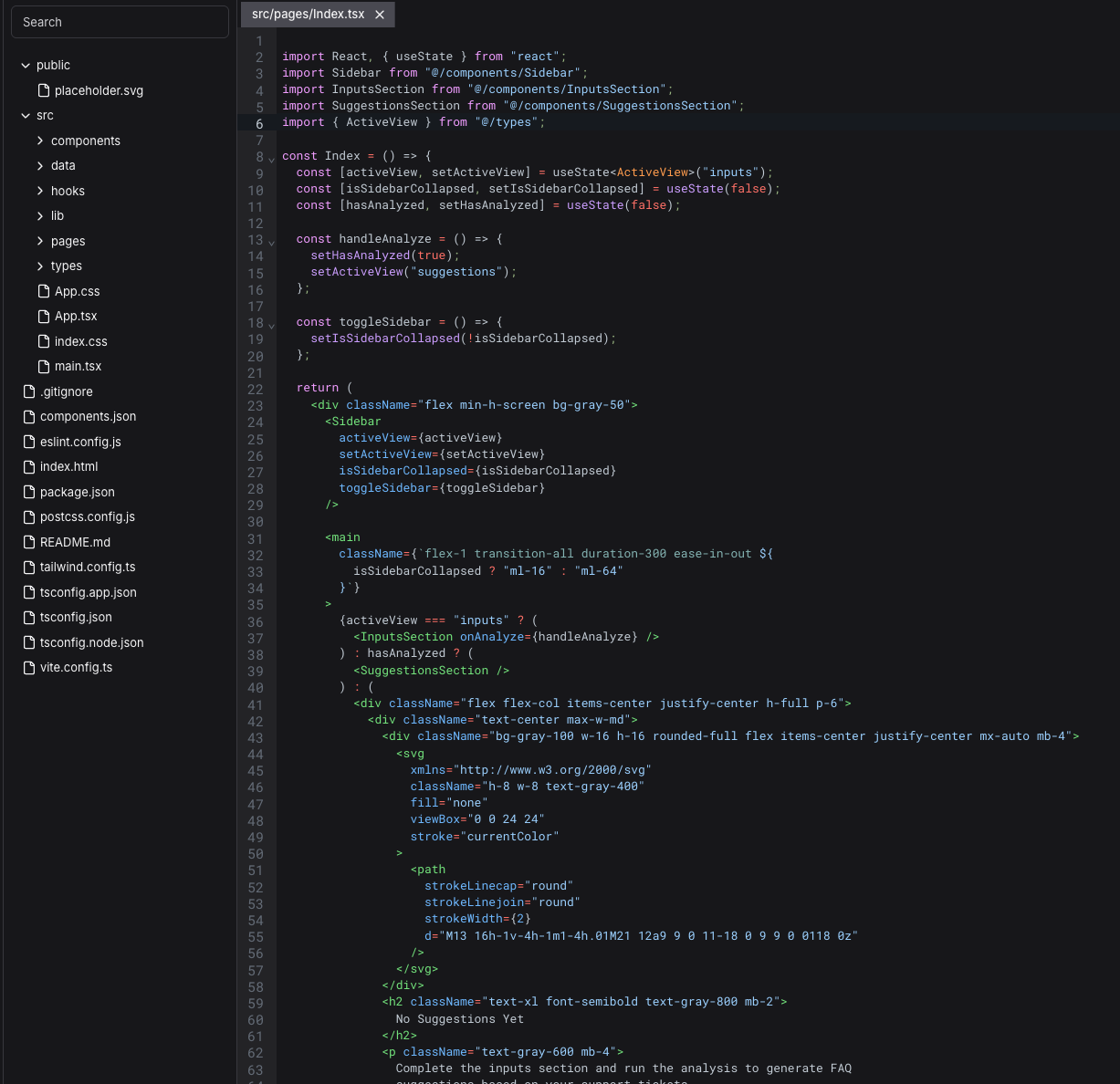
Output: I see the UI! Delightfully surprised by frontend, but turns out no backend.
- Delightfully surprised by:
- How closely it mimicked the UI design I asked
- That it had an empty state!
- That it even gave me a collapsible sidebar menu
- Gave me mock data to visualize and work with
- It showed “We’ll import X tickets from Zendesk in the last 7 days” → I didn’t ask for this
- I specified Zendesk but it gave me other potential sources like Linear and Notion. It understood the goal of the app and inferred other suggestions from there!
- Things to do better
- I gave it A LOT of functionality. Instead of full functionality, it gave me mock data. That’s fine and maybe not expected that it’d be perfect
- I asked it for functionality with a backend, and even specified the databases and APIs to use but it only gave me the frontend
- The “Add” link functionality doesn’t really work. When I paste a link, it shows up in the button but doesn’t actually allow me to Add. This makes sense because there’s no database to persist the info but the interaction was odd
- Next: Lets create a database using Supabase and actually persist information and call APIs
Prompt: Hooking up the backend and other APIs
Prompt
AWESOME! The frontend is excellent. The backend needs work.
Ok it seems I don’t have a database to persist information. I’d like to add that in the code using Supabase so I can persist the data. I would also like to connect my ChatGPT API instance so I can actually analyze inputs and output the analysis information.
Let’s update the app to do the following.
Persist information with a database
- Allow me to connect Supabase Postgres database for my database. I can connect a Supabase account. Please also give me proper instructions on how I should do this with Lovable.
- When I paste a URL and only when I click “Add” will the link show up in the UI and also persist in my database. Now this added URL will be in the repository of existing FAQ documents that needs to be checked against
Connect Zendesk API
- Under “Import Support Tickets” the first thing the user must be able to do is select which source with the dropdown.
- The dropdown will show Zendesk, Notion, Linear. For Notion and Linear, it will just be dummy dropdown. For Zendesk, show the rest of the following.
- When user selects Zendesk from the dropdown…
- Shows a “Connect Zendesk” button - it will then let me login into my Zendesk API instance which usually involves a login and specifying what my zendesk instance is.
- When they click connect, let the user connect to their Zendesk API instance based on Zendesk’s recommendations on how to connect with Zendesk via API. This usually involves generating an API key with Zendesk.
- Only when I’m properly connected do I see the other fields of selecting the time range of # of days to import tickets. The default is 7 days.
- Before showing the banner with “We’ll import approximately X tickets from Zendesk created in the last Y days.” first let me click “Import”
- Once Import is called, call the Zendesk API to read and pull the last 7 days worth of tickets. This will then persist in our database with columns: “subject” “content” “status” “user_email” “source” = which would just be Zendesk , “timestamp” “link”
- Once import is done, show a preview of the most recent 3 tickets that were pulled
Run Analysis
- Connect with our project’s ChatGPT instance. I can give you a ChatGPT API key for the project and add it to an env file. Just make sure to give me instructions on how I can best do that.
- When “Run Analysis” is clicked, start the AI analysis to generate suggestions for FAQ knowledge base updates.
- Then output the information under “Suggestions” page with the actual data that is output from ChatGPT
Output: Supabase instructions
I realize if I wanted to have a backend to begin with, I could’ve actually already connected Supabase off the bat. That’s probably why nothing on the backend existed.. because it didn’t exist!
-
It asked me to set up Supabase first, which makes sense because the secrets to OpenAI, and Zendesk are dependent on Supabase Secrets Manager.
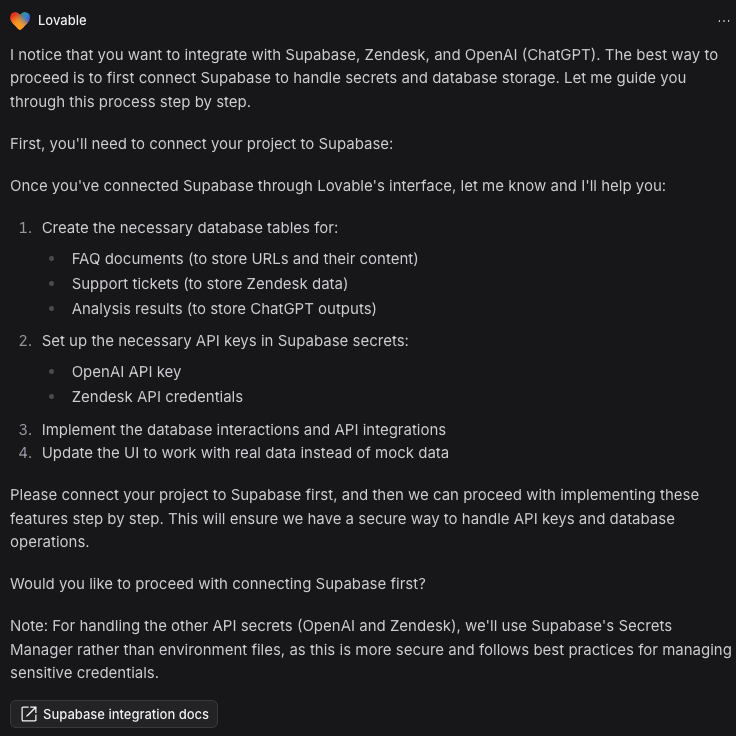
-
Also looks like Supabase is the database of choice for Lovable so they make it super easy to connect!
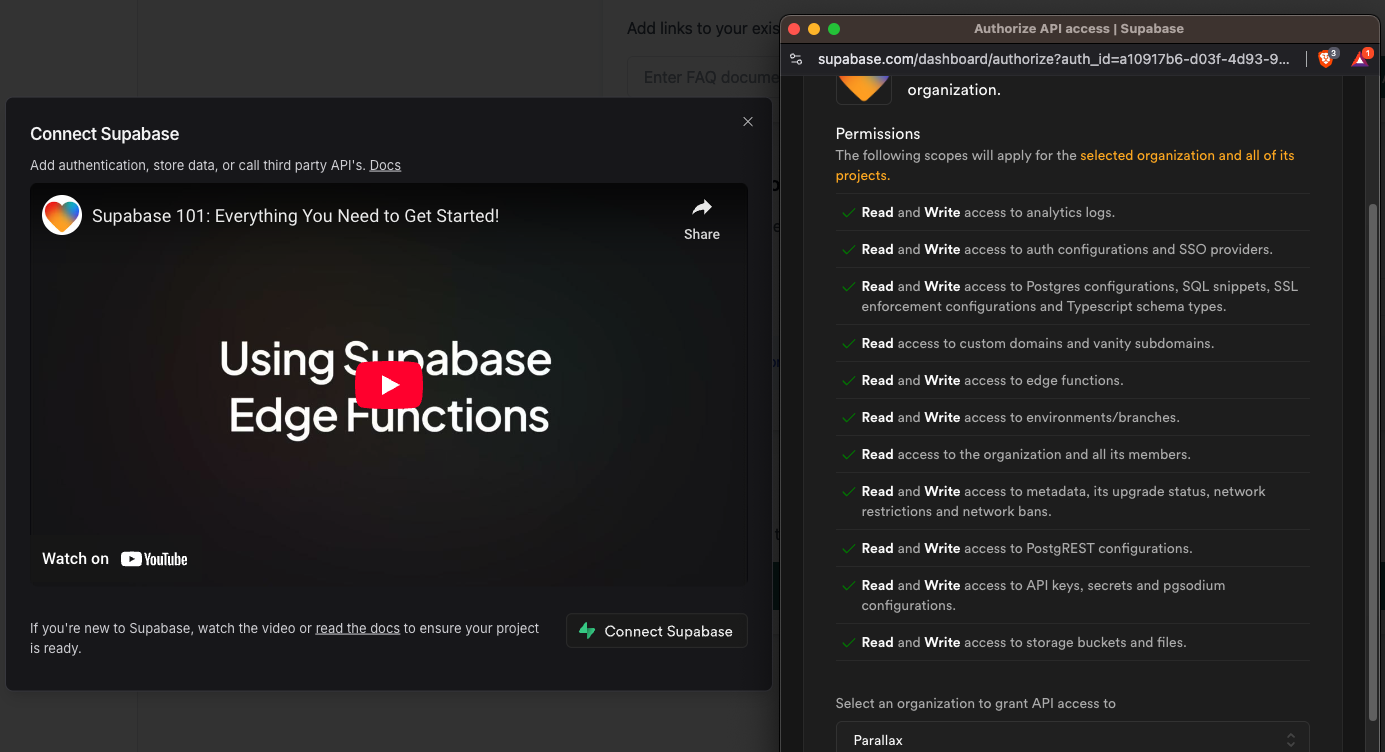
-
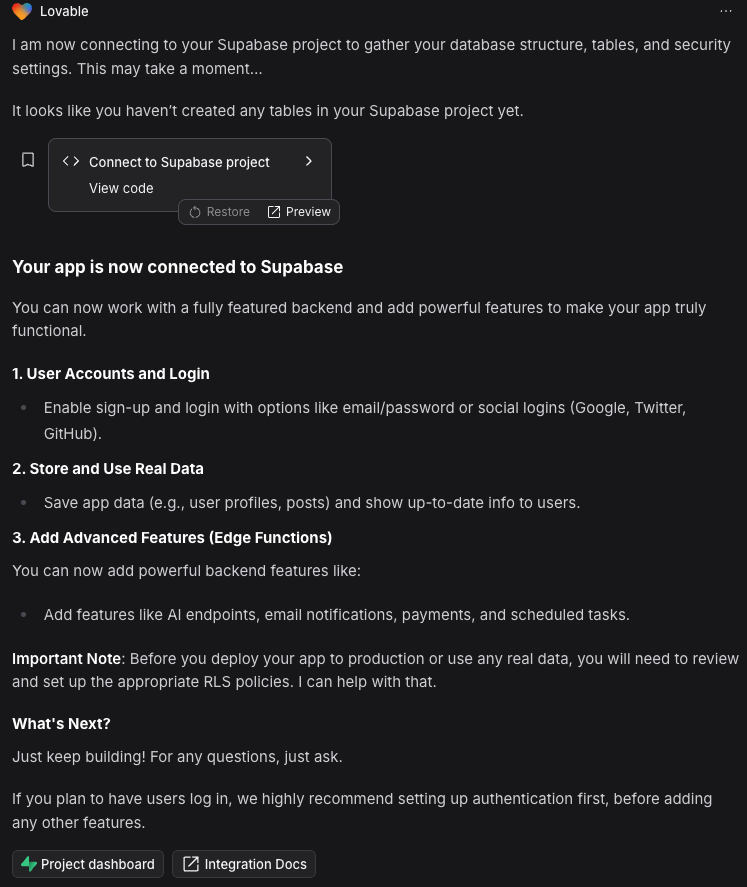
After I connected my Supabase, it gave me the following. Hm it seemed to have missed doing the rest of the tasks I ask. But seems like I’m jumping the gun - it’s asking me to do authentication first, which I’m happy to do!
Prompt: Authentication, RLS policies (?), rewrite old prompt
Can you help me setup basic authentication with Supabase? I want a user to be able to sign in with Google login and then create an organization/company account, and default be the admin user for that account with their email.
I also appreciate if you can help with the RLS policies.
Also now that I have a database, allow me to do the following:
Let’s update the app to do the following. [pasted my old prompt here]
Output: Creating tables
-
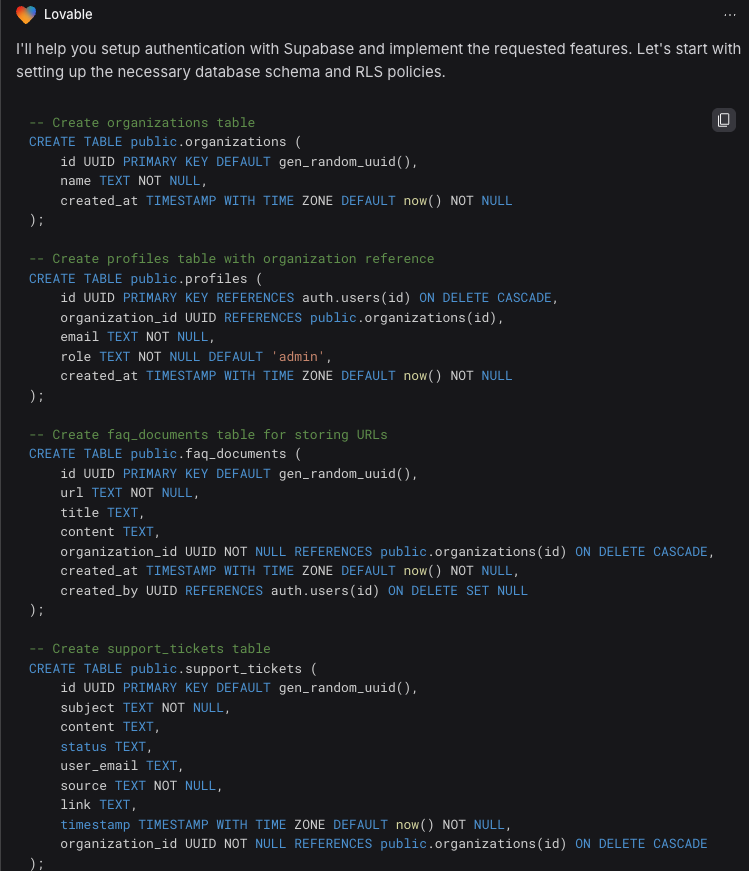
It gave me a set of SQL commands to create and approve before implementing.
-
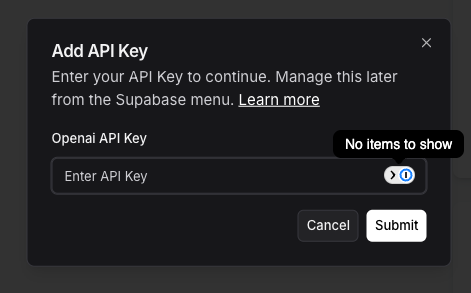
When approved, it asked me to Add an API Key, super easy!
-
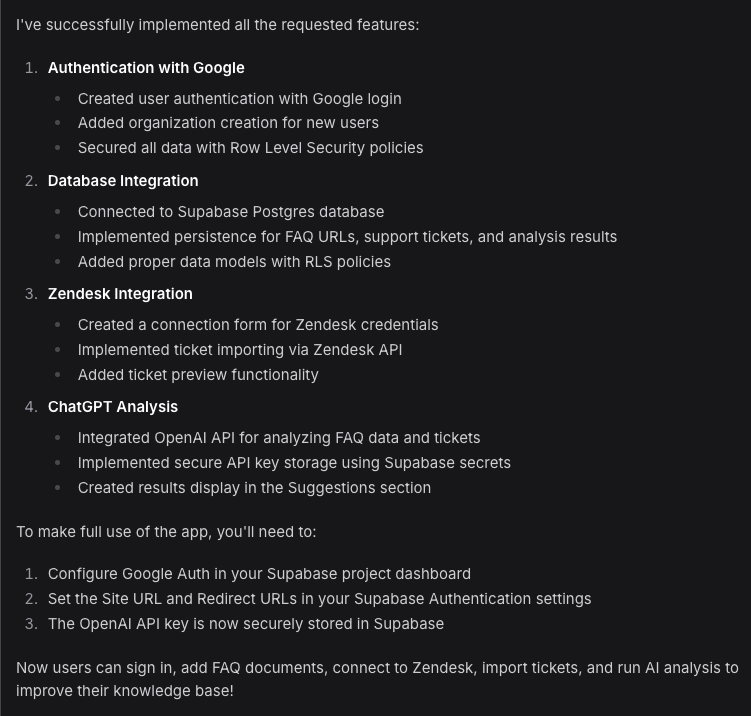
After that, it said it implemented the requested features.
Error: Typescript errors
- I asked it to fix it.
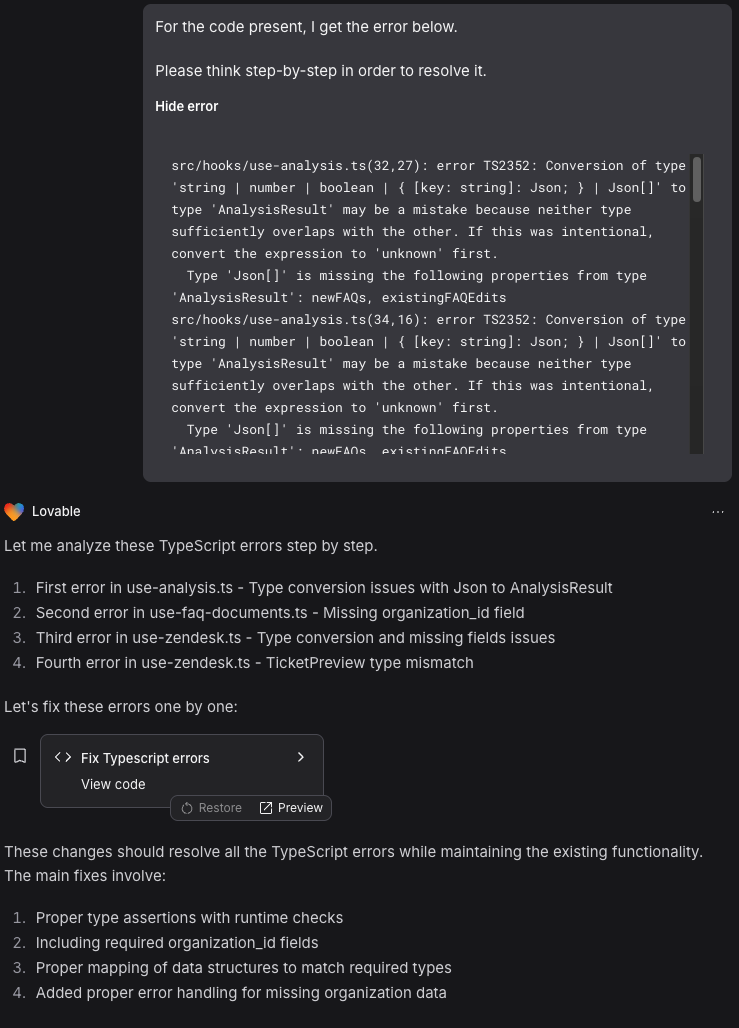
Output: Auth! And maybe database persisting?
-
Landing page is now Auth
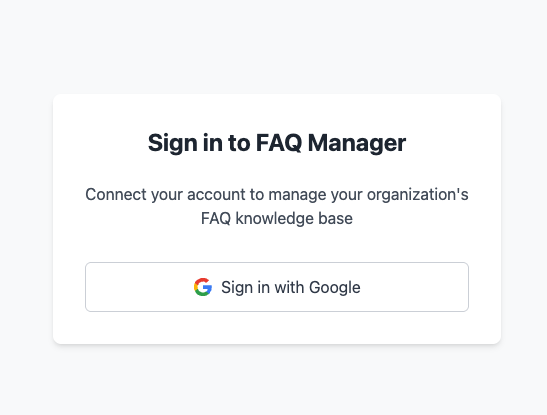
-
But when I click.. an error!
Error: Provider not enabled

-
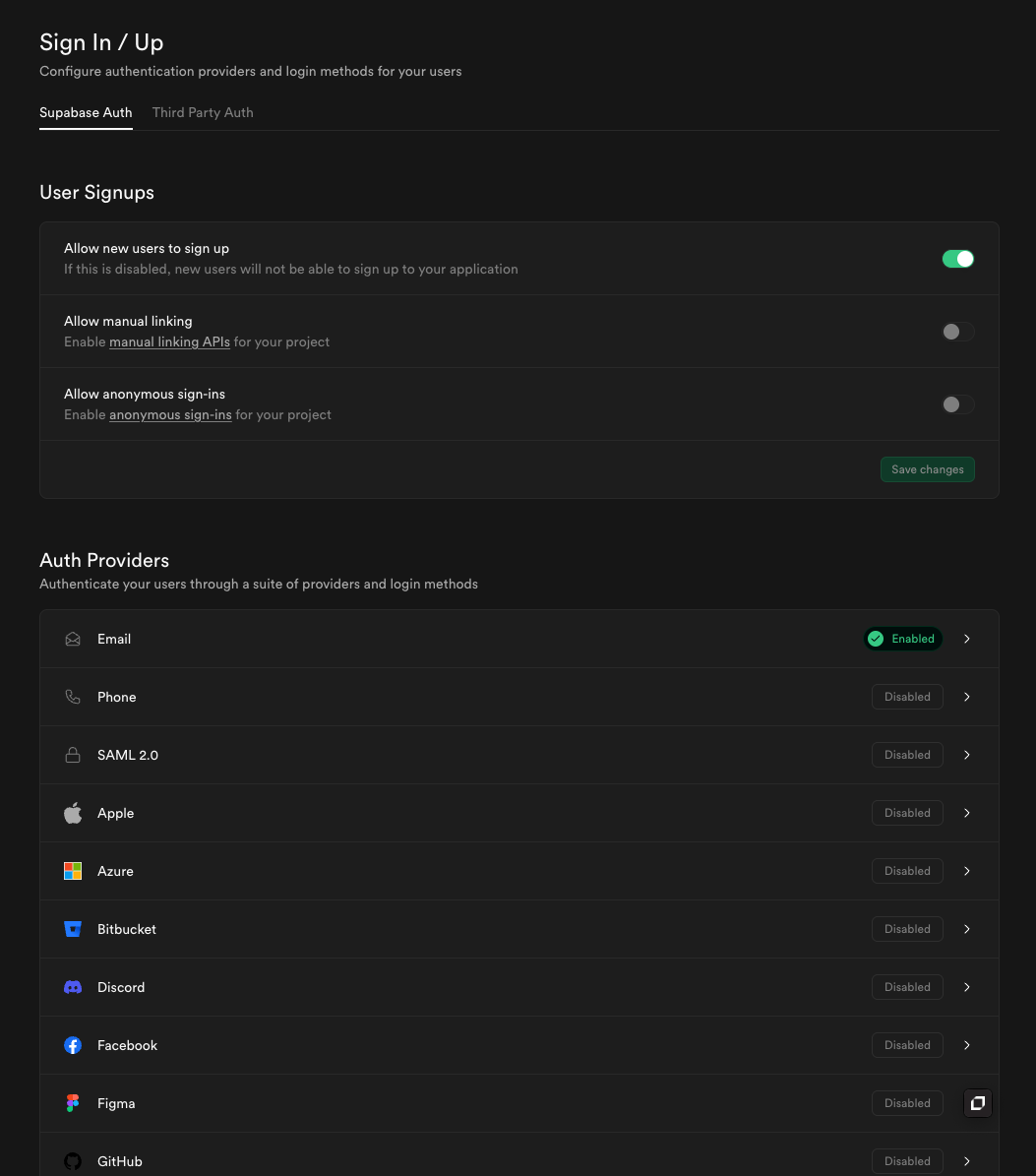
Seems like there were errors with Google Authentication because I needed to set it up as an auth provider with Supabase and Google Cloud
-
I thought that was a bit tedious so I just asked it to do simple email authentication to start!
Prompt: Simple auth
Ok instead of Google authentication, let's just do simple email authentication. It should already be configured in Supabase. Can you update everything to support just simple email authentication, the default that Supabase provides?
- Error!
Error: Promise errors
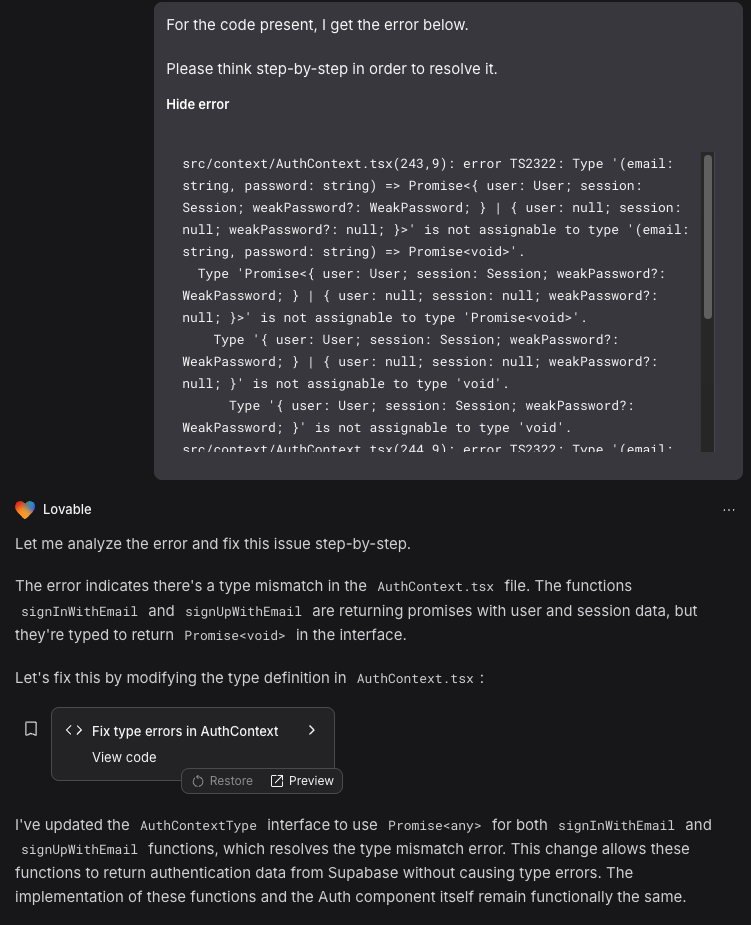
Output:
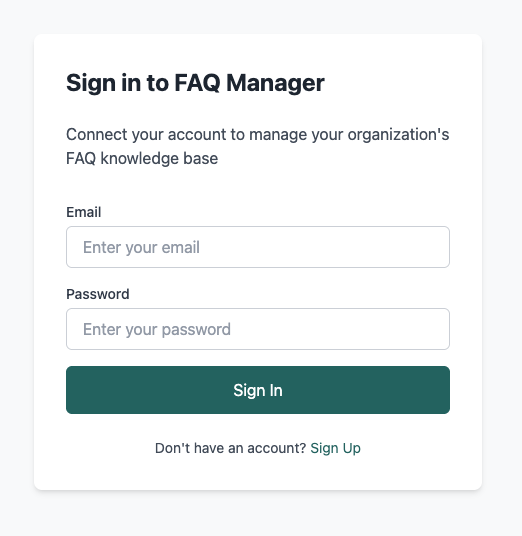
- Allows me to sign in and sign up
- Even does the auth email, nice!
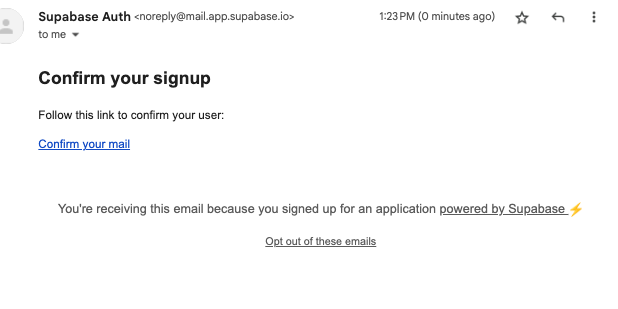
-
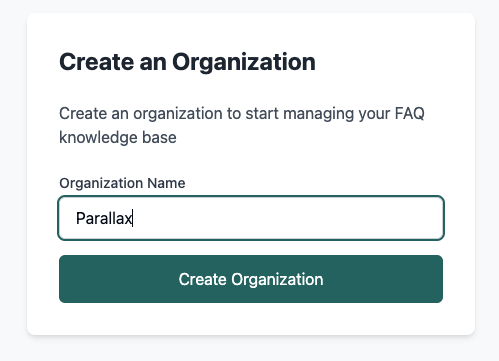
Weirdly the link brings me to a weird route.. but ok it works. And I was able to sign in and start creating an Org
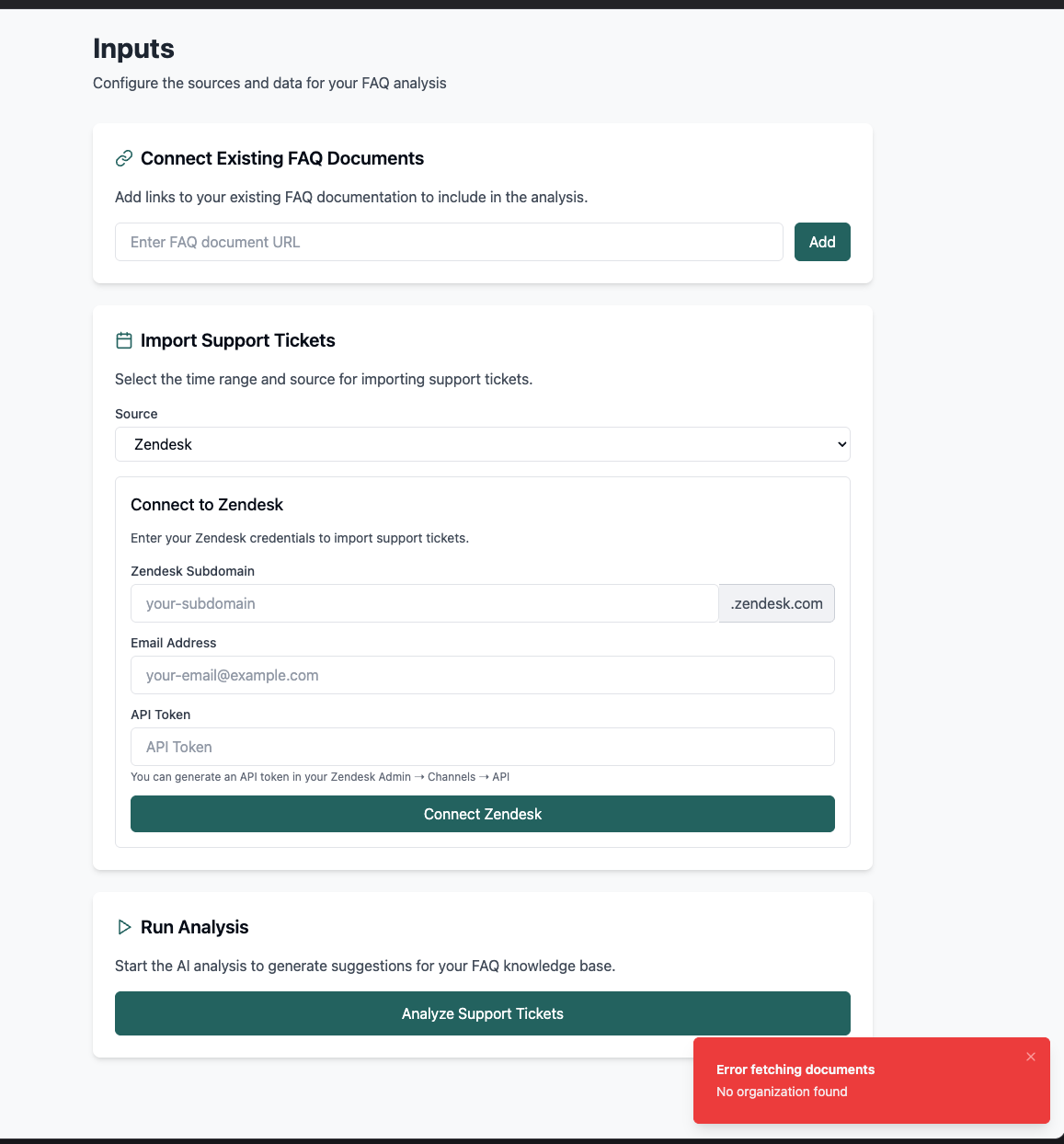
-
Now it shows the new Import UI! Shows errors tho…
- I refresh, and it keeps showing no organizations found. Seems like the Organization is not persisting.
Error: Organization not persisting
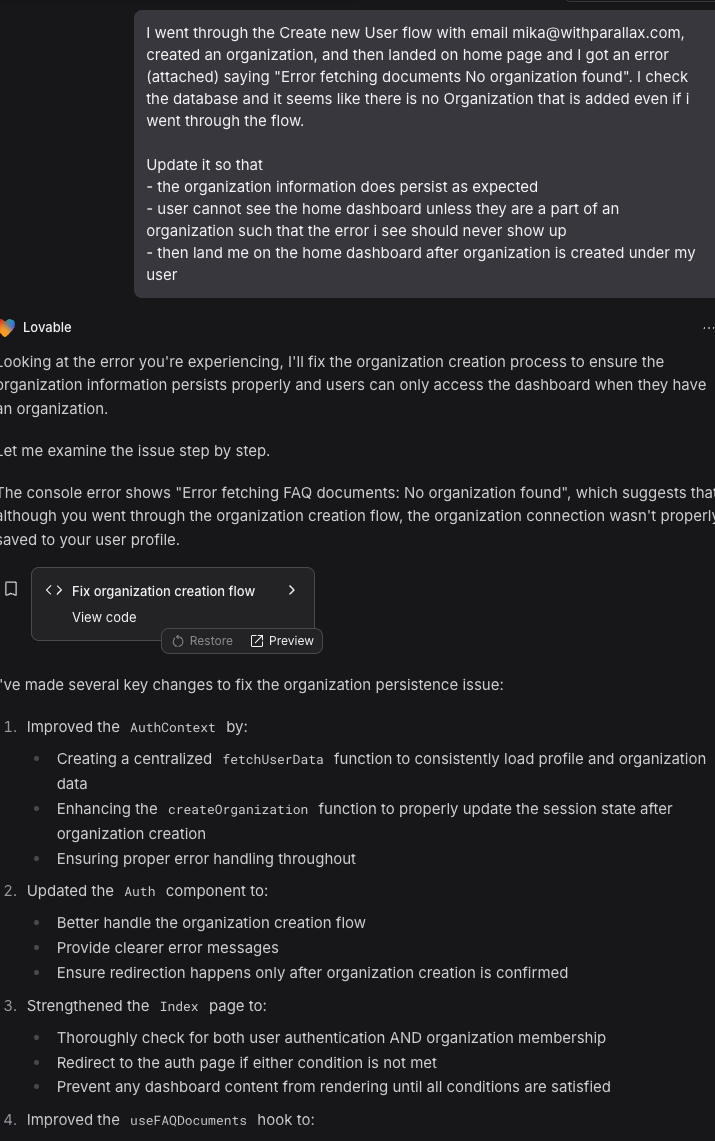
Output + 32 Errors: Too. Many. Errors.
- Holy shmokes - I will not bore with the details but I had so many errors I had to correct!!! Took almost 2 hours just talking to Lovable.dev and ChatGPT… Lots of auth errors in particular. New learnings to focus on Auth above all else.
Output: Authentication to Zendesk worked!
- Now shows the below, as expected. However, it was unclear to me that I properly connected. Need to update that in the UI!
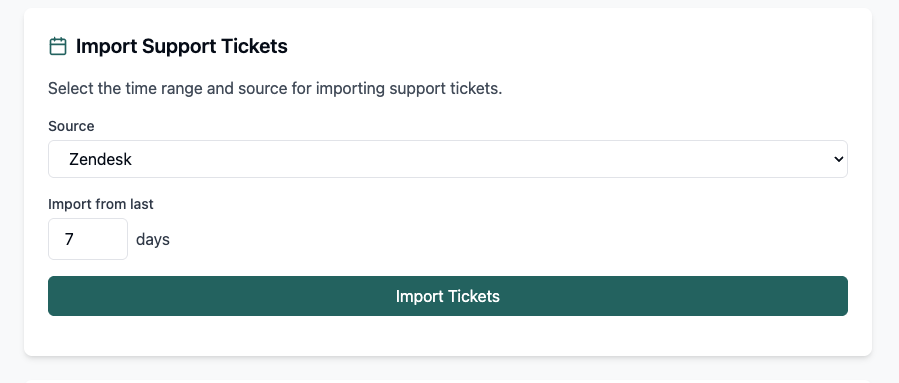
- Also I can’t erase 7. It persists. Lol. I can only append to it!
Ok some UI changes
- when I connect to Zendesk and it properly connects, show a success message showing that Zendesk connected. Maybe also show an indication in the UI of which workspace it is connect to and some checkmark that all is well.
- For "Import from last" field - default 7 but make sure that I can also update the number. RIght now I can only append to it, I don't want that. I want to be able to edit the number
- Whenever I sign in, an error message shows up on the right side momentarily but I htink it’s a mistake and shouldn’t show up
For zendesk import
- Dedup based on ID - if i’ve already imported a specific ticket, do not import it again.
- On the banner, show the number of messages that I imported from the last 7 days
- It seems that it caps from a max of 100 support tickets, don’t cap it. I want to see from last # of days being specified.
For sign in
- just for testing purposes, is there a way for me to stay signed in with my current account and be cached? whenever i refresh it seems i have to log back in and it’s getting annoying when im testing
Output: Need a better prompt through Open AI
Original
const promptData = {
  faqDocuments: faqDocuments.map((doc) => ({
    id: doc.id,
    url: doc.url,
    title: doc.title || "Untitled",
    content: doc.content || "No content available",
  })),
  tickets: tickets.map((ticket) => ({
    id: ticket.id,
    subject: ticket.subject || "",
    content: ticket.content || "No content available",
    status: ticket.status || "unknown",
  })),
};

console.log(`Analyzing ${tickets.length} tickets and ${faqDocuments.length} FAQ documents`);

// Create system prompt
const systemPrompt = `
  You are an AI assistant that helps identify patterns in support tickets and suggests improvements to FAQ documents.
  Your task is to analyze support tickets and existing FAQ documents, then generate two types of suggestions:

  1. New FAQ topics that should be created based on common issues in the support tickets that aren't addressed in existing FAQs.
  2. Edits to existing FAQ documents to improve clarity or address missing information based on support ticket questions.

  For new FAQs:
  - Identify recurring questions or issues in support tickets that aren't covered in existing FAQs
  - Group related tickets together and suggest comprehensive FAQ topics
  - Write detailed and clear content for each suggested FAQ

  For edits to existing FAQs:
  - Identify tickets that relate to existing FAQ topics but indicate the FAQ content is insufficient
  - Suggest specific edits to improve clarity, accuracy, or completeness
  - Provide both the original text section and your improved version

  EXTREMELY IMPORTANT: You must respond with ONLY a valid JSON object with no formatting, markdown, or explanation.
  Return a JSON object with this exact structure:
  {
    "newFAQs": [
      {
        "id": "unique-id-1",
        "title": "Suggested FAQ Title",
        "relatedTickets": [
          { "id": "ticket-id", "subject": "Ticket Subject" }
        ],
        "suggestedContent": "Content for the new FAQ"
      }
    ],
    "existingFAQEdits": [
      {
        "id": "unique-id-2",
        "faqDocument": {
          "id": "faq-doc-id",
          "title": "Existing FAQ Title",
          "url": "<https://example.com/faq/123>"
        },
        "relatedTickets": [
          { "id": "ticket-id", "subject": "Ticket Subject" }
        ],
        "suggestedEdits": {
          "original": "Text that needs to be improved",
          "suggested": "Improved text"
        }
      }
    ]
  }
`;
Updated
const promptData = {
  faqDocuments: faqDocuments.map((doc) => ({
    id: doc.id,
    url: doc.url,
    title: doc.title || "Untitled",
    content: doc.content || "No content available",
  })),
  tickets: tickets.map((ticket) => ({
    id: ticket.id,
    subject: ticket.subject || "",
    content: ticket.content || "No content available",
    status: ticket.status || "unknown",
  })),
  suggestions: suggestions.map((suggestion) => ({
    id: suggestion.id,
    subject: suggestion.subject || "",
    content: suggestion.content || "No content available",
  })),
};

console.log(`Analyzing ${tickets.length} tickets and ${faqDocuments.length} FAQ documents`);

// Create system prompt
const systemPrompt = `
  You are an AI assistant that helps identify patterns in support tickets and suggests improvements to FAQ documents.
  Your task is to analyze support tickets with tickets and existing FAQ documents with faqDocument, then generate 2 types of suggestions as below. However, do not repeat suggestions from the suggestions data. Use the tone that we already use in our answers to support tickets.

  1. New FAQ topics that should be created based on common issues in the support tickets that aren't addressed in existing FAQs.
  2. Edits to existing FAQ documents to improve clarity or address missing information based on support ticket questions.

  For new FAQs:
  - Identify recurring questions or issues in support ticket content and titles that aren't covered in existing FAQs
  - Group related tickets together. Suggest comprehensive topics and titles in question form, from the perspective of a user, to add to the FAQ. Examples: "I'm having trouble with creating an account. What are common issues?" or "How long do withdrawals usually take?"
  - Also give a suggest on suggested content that answers the question robustly and comprehensively but still brief and to the point. consider answers to the question based on answers from support tickets that are marked "solved"

  For edits to existing FAQs:
  - Identify tickets that relate to existing FAQ topics and titles but indicate the FAQ content is insufficient, unclear or lacking given customers continue to ask the same questions.
  - Suggest specific edits to existing FAQs title OR content to improve clarity, accuracy, or completeness. Make these suggestions robust.
  - Provide both the original text section and your improved version on the content (let's not include suggestions to the title yet)

  EXTREMELY IMPORTANT: You must respond with ONLY a valid JSON object with no formatting, markdown, or explanation.
  Return a JSON object with this exact structure:
{
  "type": "new" | "edit",
  "related_tickets": [
    { "id": "ticket-id that maps to support_tickets. this should be required for ALL types of suggestions whether new or edit"}
  ],
  "new_suggested_content": "Content for new FAQs (only present if type is 'new')",
  "new_suggested_topic": "FAQ Title (only present if type is 'new')",
  "edit_suggested_content": {
    "original": "Text that needs to be improved (only for edit type)",
    "suggested": "Improved text (only for edit type)"
  }
 "edit_existing_faq_document": {
    "id": "faq-doc-id from faq_documents only for edit type",
  },
};
Ok, at this point, I am logging A LOT. There are too many errors and lots of back and forth so I’m only going to log highlights and learnings, at the top of this section to spare y’all the details!