
How to Connect Meta Ads to Claude

Co-founder at King’s Cross Labs · ex-LinkedIn PM & Forbes 30 Under 30
I hate ads.
Not the concept. The execution. At my old startup, I hired two people at a marketing agency and still spent months inside Meta's interface trying to figure out what was working. It ate time and money. I eventually gave up because the UI is confusing, the reporting is scattered, and every question meant clicking through five tabs.
Meta launched Meta Ads AI Connectors on April 29, 2026. It changes that. You connect Claude directly to your ad account through an official MCP server (Model Context Protocol, basically a secure pipe between Claude and your data). No developer app. No API keys. No copy-pasting CSV exports every Monday.
I recently helped Monica, founder of But Better (a nut butter brand on Shopify), set this up. She went from juggling Ads Manager to asking Claude plain-language questions about spend, performance, and what to scale. Setup took about 5 minutes.
This guide walks you through the connector setup, including steps Meta does not spell out clearly, plus a simple prompt to build a Meta Ads monitoring dashboard in Cowork.
Why this matters
If you run ads on Meta, your performance data lives inside one of the most confusing interfaces in marketing. You end up doing mental math: "Which campaign is actually profitable? Should I refresh this creative or kill it?" Claude with the Meta Ads MCP can pull live ad data and answer those questions in plain English, without you learning Ads Manager's layout.
Key insight: The connector gets Claude access to your ad account. A Cowork Live Artifact turns that access into something you actually open every morning.
Before you start
You will need:
- A Meta Business account with admin access to at least one ad account
- Claude on web (claude.ai) or the desktop app, on a paid plan with Cowork and Live Artifacts
- About 5 minutes for setup
Open beta note: Meta is rolling this out gradually. Some accounts are not enabled yet. If you complete setup but Claude says the connector is disabled, your account may not be in the beta yet. Check back in a week or two, or confirm eligibility in Meta's Business Help Center under "Manage Ads from an AI Agent with Meta Ads AI Connectors."
Connect Claude to Meta Ads
1. Get the official Meta MCP server URL
Go to Meta's Business Help Center page: Manage Ads from an AI Agent with Meta Ads AI Connectors. Copy the official MCP server URL Meta publishes there.
The URL is:
https://mcp.facebook.com/adsMeta hosts and maintains this server. You are not running anything yourself. Do not use third-party URLs or GitHub repos claiming to be Meta MCP servers.
2. Open Claude → Settings → Connectors
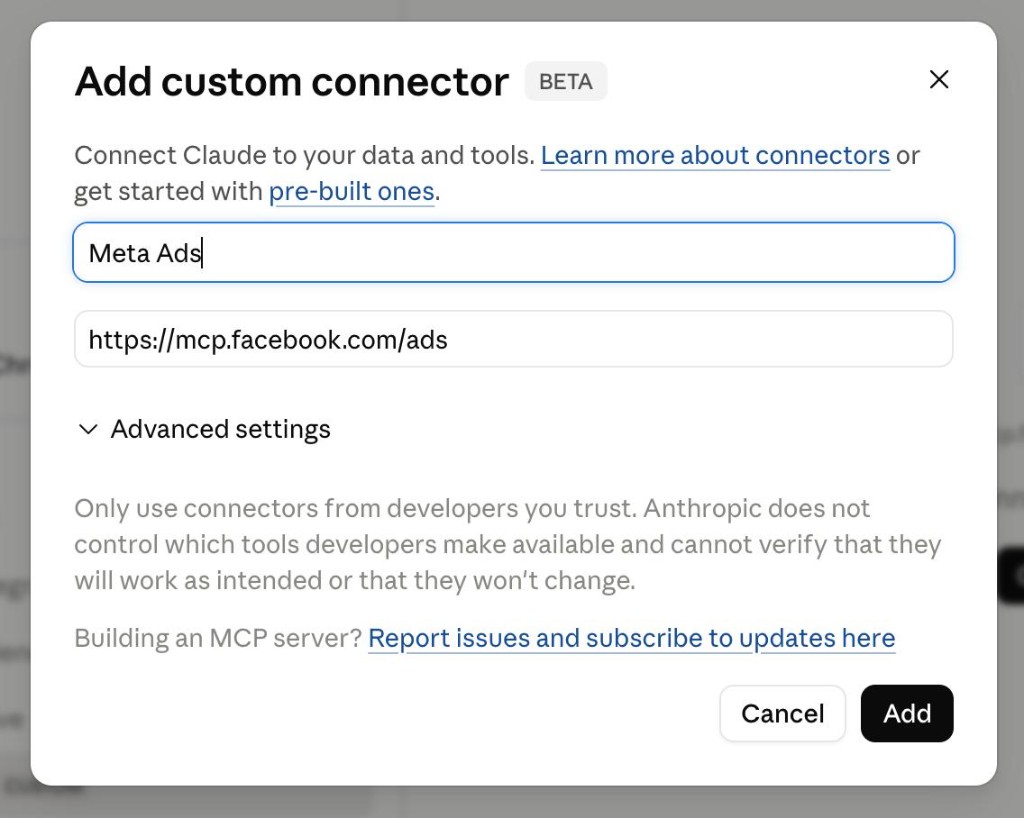
In Claude.ai (web) or the desktop app, click your name in the bottom-left, choose Settings, then go to the Connectors tab. Click Add custom connector.
3. Paste the MCP URL and connect
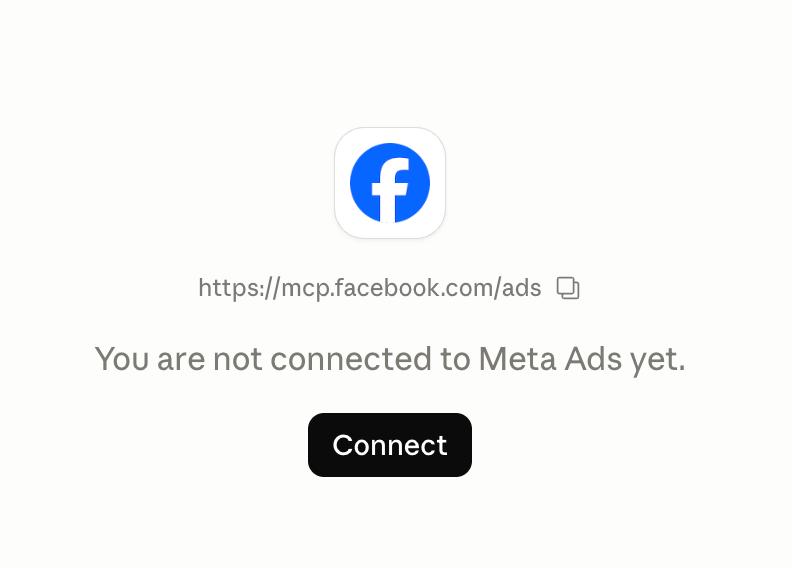
Drop https://mcp.facebook.com/ads into the URL field. Name it Meta Ads. Click Add, then Connect.
4. Authorize with Facebook
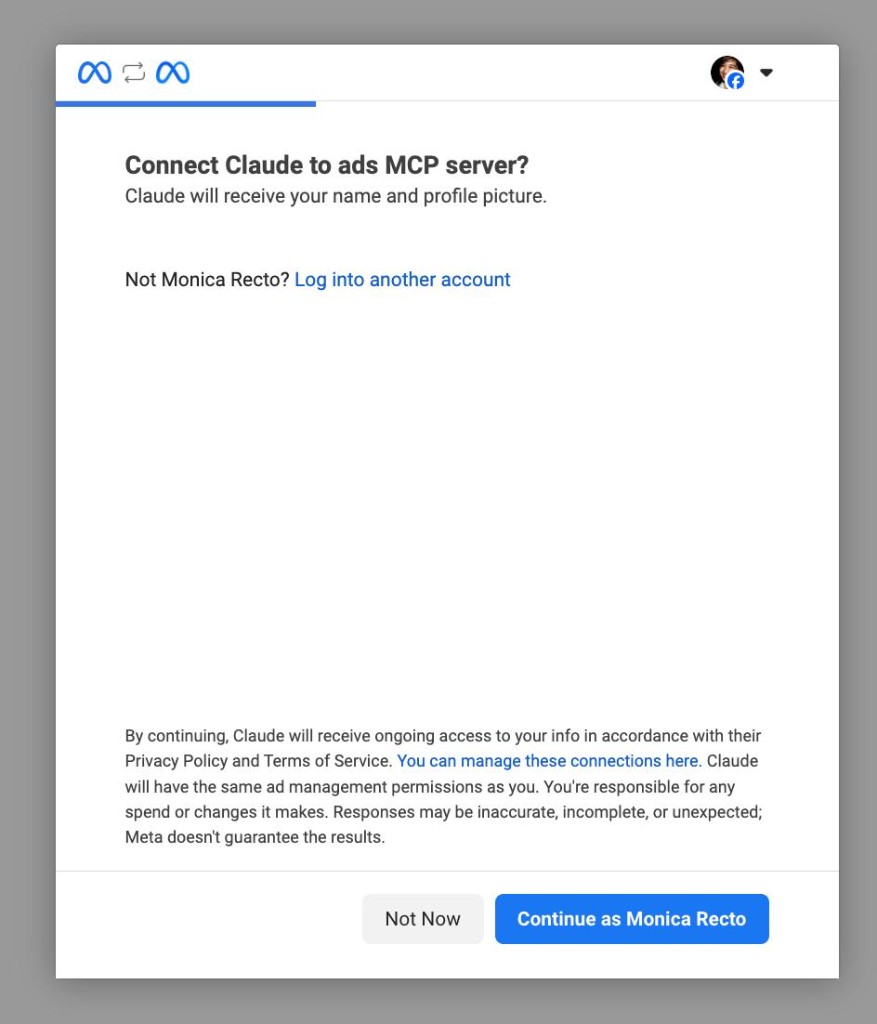
A Facebook OAuth window opens. Sign in with the Facebook profile that has admin access to your ad account(s).
You will see two screens.
Screen 1: Confirm you are connecting Claude to the ads MCP server. Claude will have the same ad management permissions as you. Meta is explicit: you are responsible for any spend or changes it makes.
Screen 2: Review what Claude can access: product catalogs, ad management, ads stats, and business settings. Click Save.
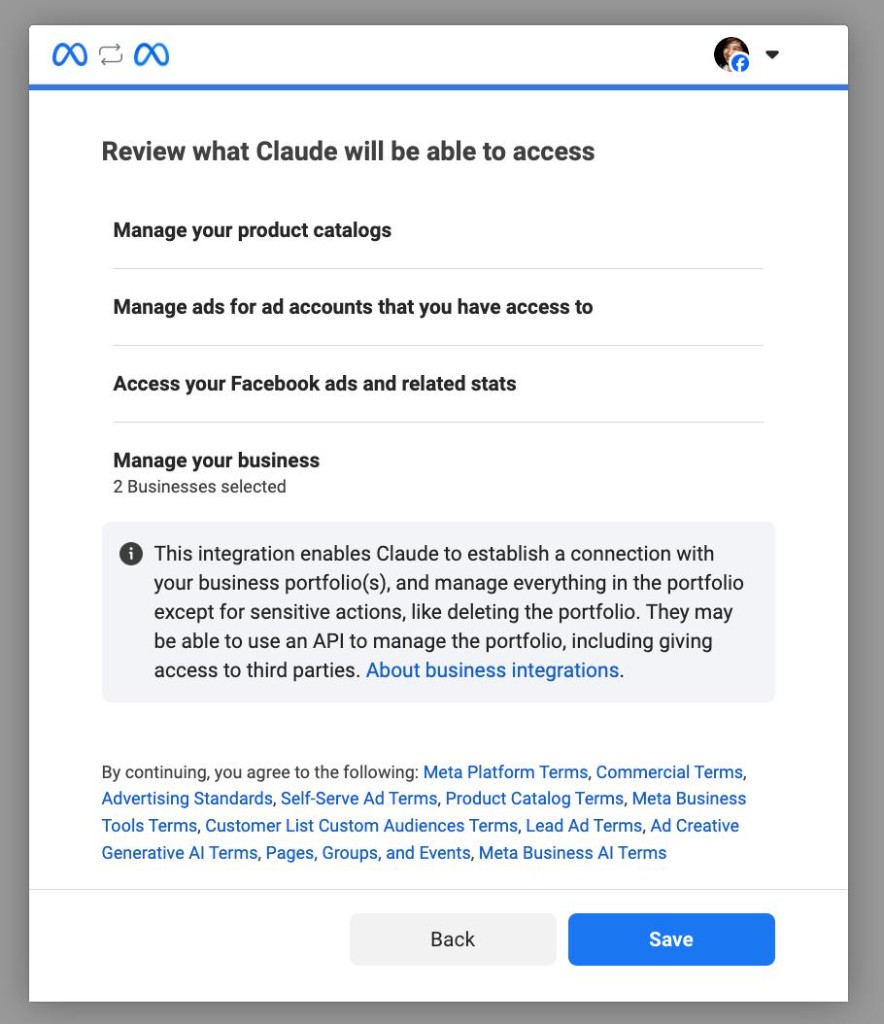
Permissions granted include: ads_read, ads_management, read_insights, and business_management.
5. Pick which ad accounts Claude can touch
Meta asks which ad accounts and Pages to expose. Pick only the ones you actually want Claude to manage. If you have personal and client accounts, keep client accounts off this list unless you are cleared to manage them.
For a first test, grant access to one ad account only.
6. Set tool permissions to "Needs approval"
Back in Claude Settings → Connectors → Meta Ads, you will see a list of 40+ tools Claude can call (ads_activate_entity, ads_catalog_create, and so on).
Set these to "Needs approval" (the hand icon), especially anything that creates, edits, or activates ads. Claude has to ask before making changes. You keep read access for reporting without accidentally pausing a campaign mid-flight.
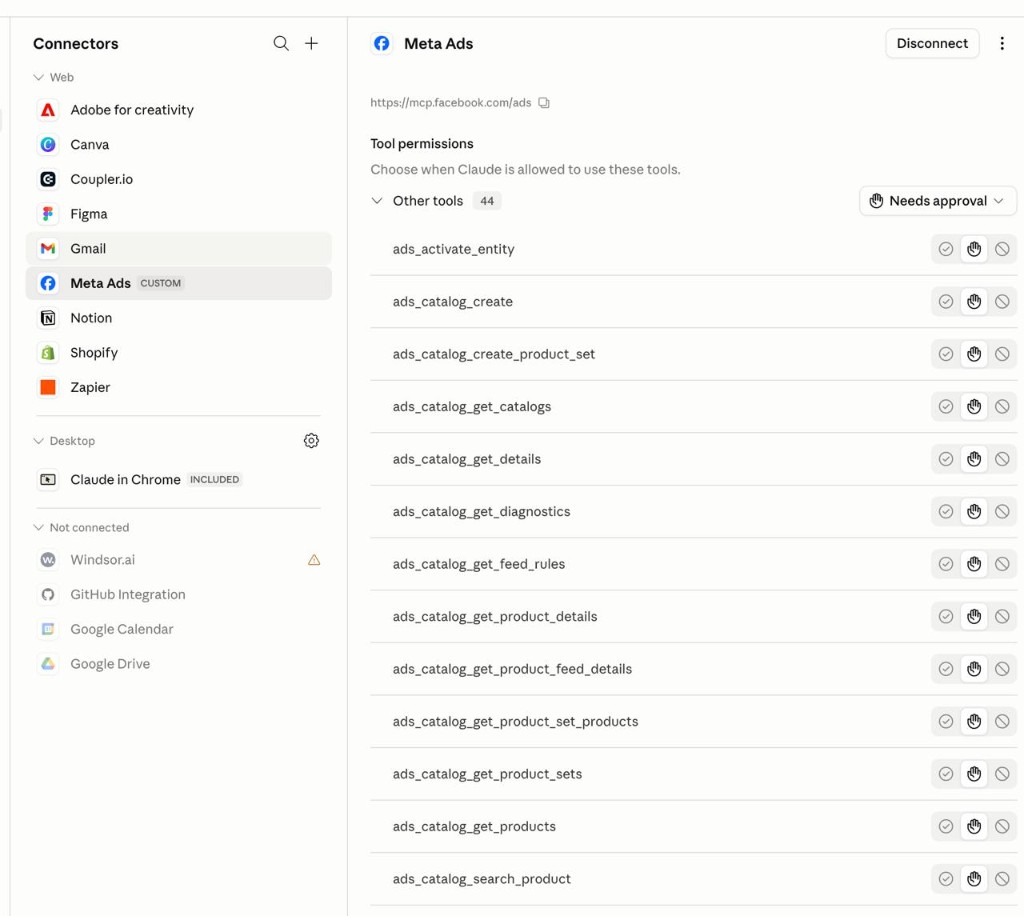
This granular control is not obvious from Meta's setup docs. Worth 2 minutes now so you do not get surprised later.
7. Test the connection (read-only first)
Open a new chat and type:
What ad accounts do I have connected, and what was my total spend in the last 7 days?
If Claude returns live numbers, you are in.
If it says the connector is disabled, your account may not be in the open beta yet. Double-check you are logged into the right Facebook profile and that you selected the correct ad account during OAuth.
Build a simple Meta Ads dashboard
Once the connector is live, open Cowork → Live Artifacts → New artifact → Chat with Claude and paste a prompt like the one below.
You do not need to specify charts, tables, or layout. Tell Claude what you are trying to watch and let it pull from your connected Meta Ads account. It will focus on what actually matters to someone running ads: spend, performance, what is working, what is fatiguing, and where budget is going.
Cowork build prompt (copy and customize)
Build me a simple Live Artifact dashboard to monitor my Meta Ads.

My goal: see how my ads are performing at a glance, without opening Ads Manager.

Pull live data from my connected Meta Ads account. Show only what a Meta Ads person would actually care about — things like spend, reach, clicks, CTR, CPC, and which campaigns or ads are performing best vs. worst.

Keep it clean and minimal. Use a timeframe I can switch (7d / 14d / 30d). Add a short plain-language summary of what the data shows and one thing I should pay attention to today.

Before you build, check which ad accounts I have connected and use the right one. Ask me if anything is unclear.
That is the whole prompt. Customize the goal line if you want. For example, "I am focused on e-commerce conversions" or "I mostly run prospecting campaigns." Claude will shape the dashboard around that.
After the first build, iterate in plain English: "Add cost per purchase," "Flag anything with CTR below 2%," or "Change the default window to 30 days." Live Artifacts keep version history, so you can roll back if an edit breaks something.
Tips after your first build
- Start read-only. Keep write tools on "Needs approval" until you trust the setup. Use the dashboard for decisions before you let Claude touch campaigns.
- Refresh before meetings. Hit the reload button in the artifact header to pull hard-fresh data from Meta.
- Ask follow-up questions in chat. The connector works outside Cowork too. "Which ad had the highest CTR last week?" or "Compare spend on my top 3 campaigns" are fair game once you are connected.
Additional Reading
Here are some related guides to check out:
Frequently asked questions
- Can I manage my Facebook and Instagram ads from Claude?
- Yes. Meta Ads AI Connectors let you connect Claude directly to your ad account through an official MCP server, so you can ask plain-language questions about spend and performance instead of clicking through Ads Manager. Setup takes about five minutes with no developer app or API keys. You can also build a Cowork dashboard to watch your ads at a glance every morning.
- How do I connect Meta Ads to Claude?
- In Claude, go to Settings → Connectors → Add custom connector, paste Meta's official MCP URL (https://mcp.facebook.com/ads), name it Meta Ads, and authorize with the Facebook profile that has admin access to your ad account. Pick only the ad accounts you actually want Claude to touch, then test with a read-only question like your spend over the last 7 days. Meta hosts the server, so you're not running anything yourself.
- Is it safe to let Claude touch my ad campaigns?
- It's as safe as you configure it. The key step is setting the write tools (anything that creates, edits, or activates ads) to "Needs approval" so Claude has to ask before making changes. That keeps full read access for reporting without risking an accidentally paused campaign. Start read-only and use the dashboard for decisions before you let Claude change anything.
- Why isn't the Meta Ads connector working for me?
- It's in open beta and Meta is rolling it out gradually, so if setup completes but Claude says the connector is disabled, your account may not be enabled yet. Check back in a week or two. Also confirm you're logged into the Facebook profile with admin access and that you selected the right ad account during authorization. Meta's Business Help Center has the eligibility details.