Intro to Claude Live Artifacts
Claude just launched Live Artifacts, and this is one of those features that fixes a very real workflow headache fast. If you are in marketing or sales, you are probably checking five tools before 10am and still missing context. Live Artifacts lets you bring those moving parts into one persistent dashboard that updates when you reopen it.
The big shift is this: instead of building one-off reports that go stale, you create a living workspace in Claude Cowork that can refresh with current data from your connected apps. You can keep iterating on the same artifact over time, and if an update goes sideways, version history lets you roll back.
Before You Start
1) Confirm you are on a paid Claude plan
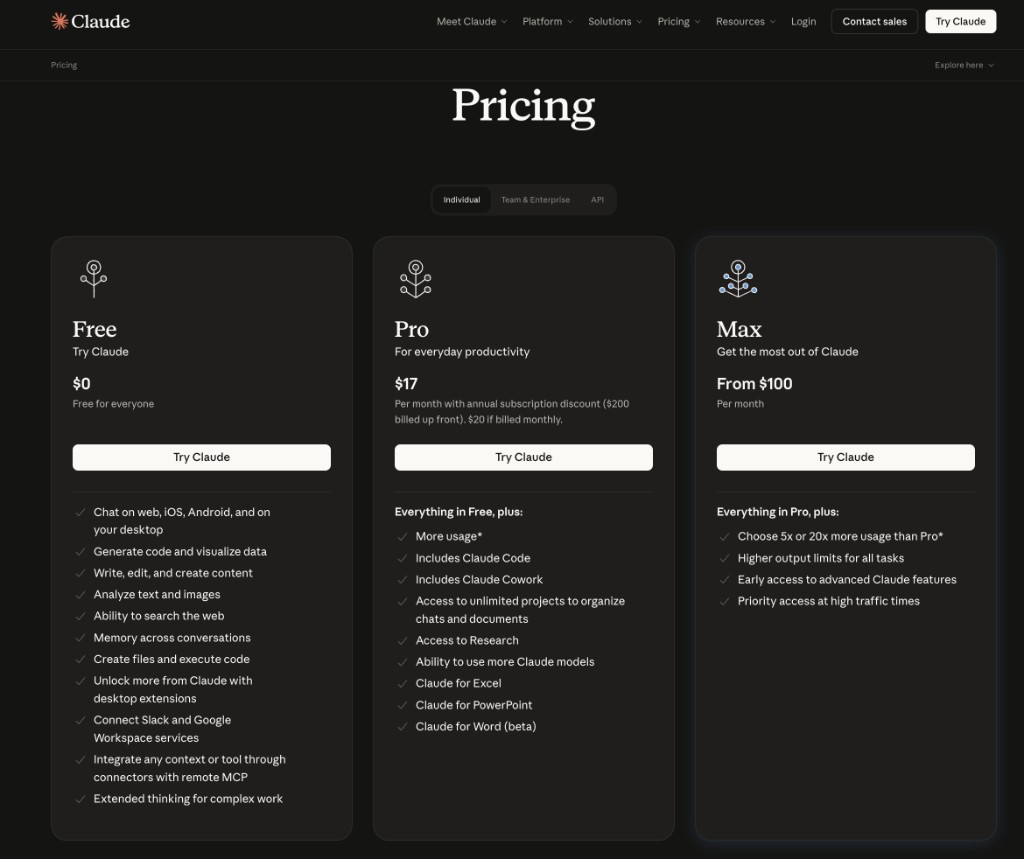
Live Artifacts are currently available on paid Claude plans: Pro, Max, Team, and Enterprise. If you are on a free plan, you will not see this feature yet. This is the first gate to check before troubleshooting anything else.
2) Update Claude Desktop first
Cowork and Live Artifacts require the latest Claude Desktop version on macOS or Windows. Download or update from claude.com/download, then relaunch the app. Most "I cannot find it" issues are just outdated desktop versions.
What Live Artifacts Actually Are
3) Understand the core concept
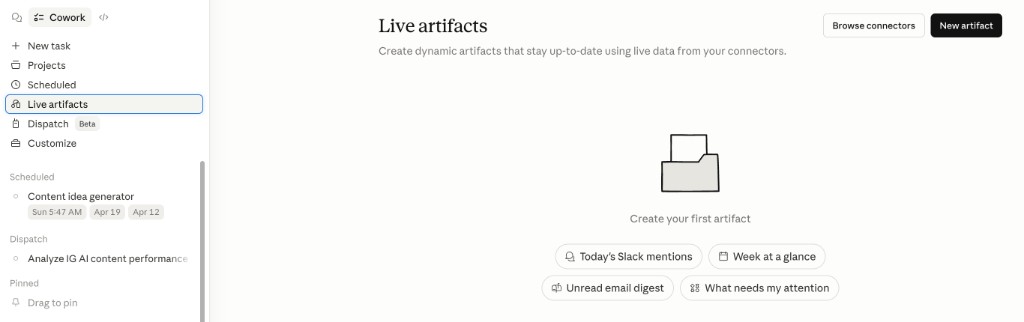
A live artifact is a persistent, interactive HTML page Claude builds for your workflow in Cowork. Think tracker, dashboard, competitor monitor, or morning brief that stays available across sessions. It lives in its own "Live artifacts" tab, so you do not need to hunt down the original chat.
4) Know how it differs from normal chat artifacts
Chat artifacts are often tied to one thread and one moment in time. Live artifacts are built to be reopened and refreshed with current data from approved connectors and local files. They also keep version history, so you can compare changes and restore older versions when needed.
Key insight: The real value is not a prettier dashboard, it is a reusable decision surface that stays current.
5) Learn where they live and how persistence works
Every artifact you create is automatically saved under the "Live artifacts" tab in Cowork. You can open it next week from a completely new session and keep building from there. This makes it useful for ongoing workflows, not just one-time experiments.
Build Your First One
6) Connect the right data sources
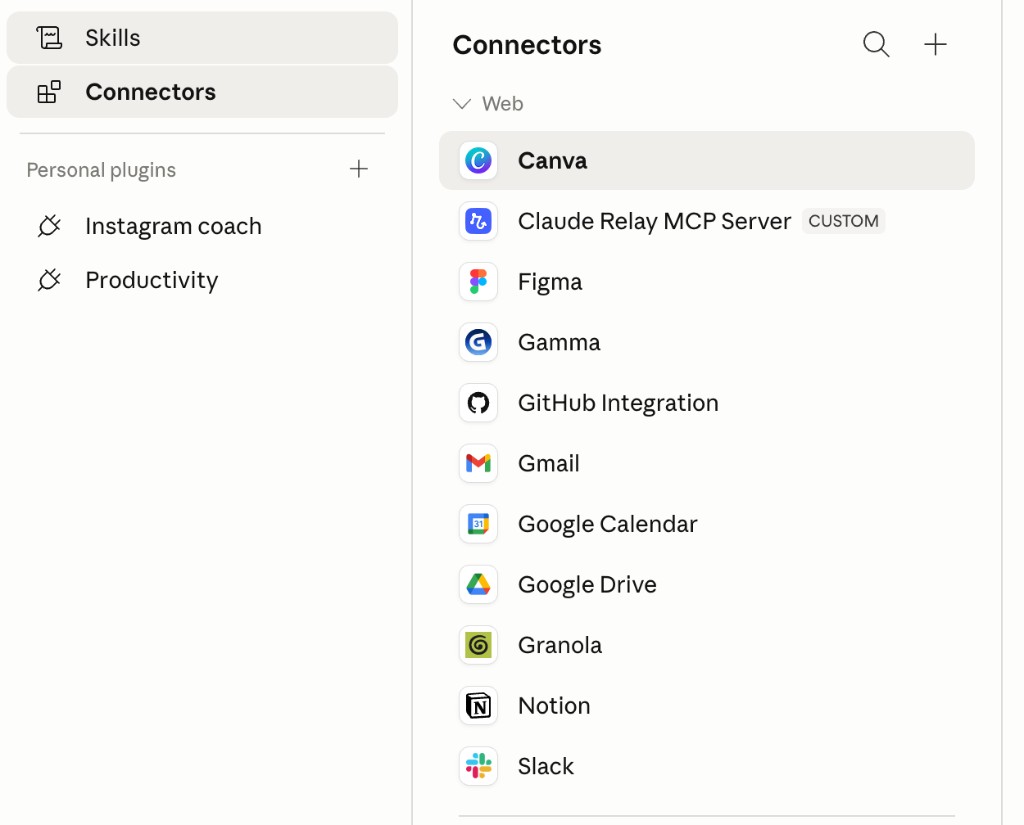
Before you build, verify the connectors you need are available and approved. This matters because your artifact quality is only as good as the data inputs. If your sales pipeline connector is missing, your "pipeline health dashboard" will be incomplete by default.
7) Create from the Live Artifacts tab
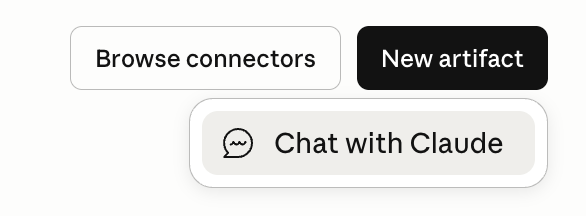
Open the Live artifacts tab directly, click New artifact, then choose Chat with Claude. This starts a conversation focused on artifact creation from scratch. Mention both the artifact goal and the exact data sources, like Asana, Linear, Slack, Calendar, or local files. Claude uses your prompt to generate the first working version.
Example prompts:
- "Build me a dashboard that shows open tasks by project, pulling from Asana and Linear."
- "Create a morning brief with Slack mentions, today's calendar, and open pull requests."
- "Build a competitor tracker for releases, pricing changes, and blog updates."
8) Reopen and refresh automatically
When you open a live artifact, Claude pulls fresh data automatically in most cases, with short caching for faster loads. If you need hard-fresh data right now, use the refresh button in the artifact header. Treat refresh as your "I need current state" button before meetings or decisions.
Examples
If you're in marketing & sales, for example, here are 10 live artifact idea examples:
-
Weekly pipeline pulse dashboard
Pull from CRM and calendar to show deal stage movement, stalled deals, and this week's follow-up priorities. -
Campaign performance command center
Combine ad platform spend, landing page conversions, and email click-through rates in one live view. -
Content ROI tracker
Monitor blog posts, social content, and lead attribution to identify what content actually drives pipeline. -
Competitor launch monitor
Track competitor pricing updates, product releases, and messaging changes in one dashboard. -
Account-based marketing watchlist
Track target accounts, engagement signals, and recent touchpoints for coordinated outreach. -
Sales rep daily focus board
Show each rep's top opportunities, overdue tasks, and high-priority follow-ups for today. -
Lead source quality dashboard
Compare lead sources by close rate, deal size, and sales cycle length, not just lead volume. -
Executive morning brief artifact
One page with top KPIs, urgent Slack mentions, today's meetings, and blocked deals. -
Objection intelligence tracker
Aggregate recurring objections from call notes and map them to updated battlecards and content. -
Launch readiness scoreboard
Track launch checklist status across product marketing, sales enablement, and demand generation.
Current Limitations You Should Know
- Live artifacts are local to your device right now, so they do not follow you automatically to another computer.
- Sharing is not available yet, though it is on the roadmap.
- Artifacts can use connectors you already approved without asking each time in the same way normal sessions do, so be intentional about which connectors you allow during setup.
Additional Reading
Here are some related guides to check out: