
How to Setup Trades with Interactive Brokers & Claude

Co-founder at King’s Cross Labs · ex-LinkedIn PM & Forbes 30 Under 30
I wanted my broker and my AI in the same conversation without handing over the keys. Interactive Brokers just shipped an official Claude connector, and the part that actually matters is draft-only: Claude can pull your portfolio, write up orders, and park them in a queue while you still tap Review & Submit (or Reject) in IBKR.
Why this matters
Major brokers are starting to plug AI into real accounts, and IBKR got there early with something I'd actually trust more than a random MCP link: an official connector where the broker built the integration. The pattern is probably coming to your other tools too. You ask in plain language, the system does prep work underneath, and you stay on the approve button.
Robinhood's agentic trading is a different beast: an agent can place trades inside a funded sandbox account. IBKR went the other direction. Claude can do the research and paperwork, but you keep the final click, which feels more like a sharp analyst handing you a draft than a bot trading while you sleep.
Claude never submits orders to the market. It stages instructions inside IBKR, and the decision plus the final button stay yours.
What is Interactive Brokers?
Interactive Brokers (IBKR) is a global online brokerage based in Greenwich, Connecticut. Thomas Peterffy founded it decades ago, and it's known for relatively low-cost access to stocks, ETFs, options, futures, bonds, currencies, and more across 170+ markets worldwide. You need an existing IBKR account before any of this works.
What can you do with it?
Once you're connected, you just talk to Claude and it pulls live data from your account through IBKR's own connector, not some third-party workaround.
For portfolio questions, you can ask what's open, what you're up or down today, how you're allocated, which orders are still working, or what you traded recently. For market data, you can get a live quote, scroll price history, or search for a ticker when you're not sure of the symbol. When you want to trade, you describe the order in normal language (like "buy 100 shares of AAPL at a limit of $200") and Claude turns it into a draft instruction in IBKR. Nothing hits the market until you open the queue and hit Review & Submit or Reject.
You don't need to memorize what the connector calls each action behind the scenes. Ask in English and Claude maps it to balances, quotes, or a draft order.
Safety first
1. By design, Claude only drafts — you execute
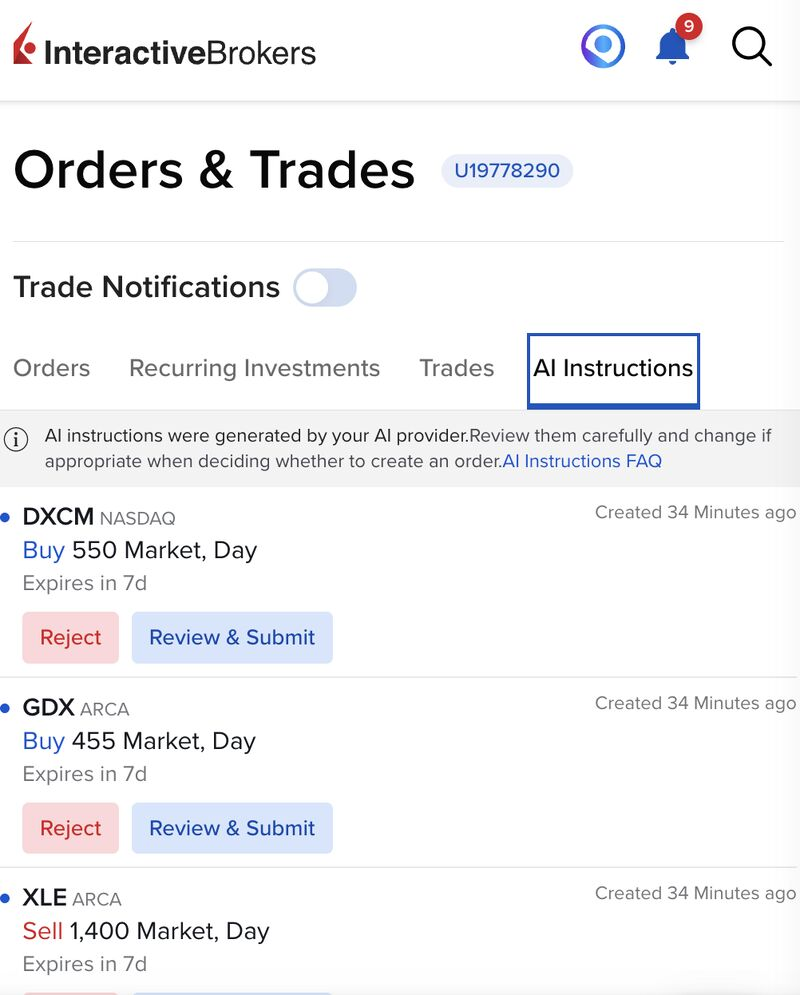
Claude doesn't place live orders. It writes instructions and sends them to IBKR, where you open Orders & Trades → AI Instructions, read each draft, and choose Review & Submit or Reject. To me it feels less like a robot running the account and more like someone who built the whole case and left the signature line blank for you.
2. Turn on manual approval in Claude
In your IBKR connector settings inside Claude, I wouldn't set trading-related tools to "Always allow." Manual approval (ask before each use) means Claude can't pull account data or draft orders without you seeing the prompt first. Portfolio and research questions feel lower risk to me; anything that creates or sends trade instructions deserves an extra pause.
3. Know what Claude can and can't stage
The edges are worth spelling out: Claude can stage stock and ETF orders as market or limit. Stops and options you still set up yourself in IBKR.
4. Claude isn't an oracle
I use it to pull the full picture together, test new theses, and poke holes in my thinking, but the buy/sell decision stays mine. A polished paragraph is not a buy signal.
5. Live vs Paper on login
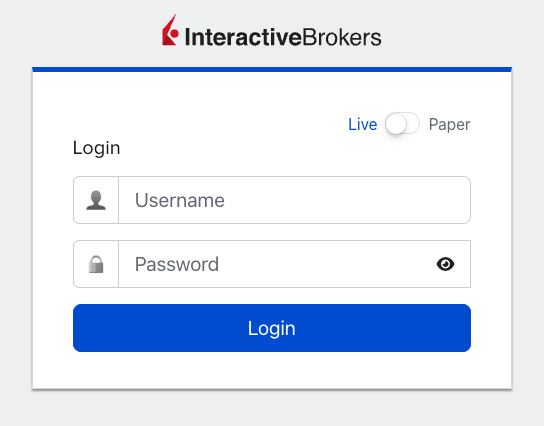
When you connect, IBKR's login screen has a Live / Paper toggle, so check which environment you're authorizing before you sign in. Paper is for practice; Live is real money.
6. One account per connection
Setup only authorizes one IBKR account at a time, so pick the one you actually want Claude to see.
How to connect your IBKR account to Claude.ai
Step 1: Open an Interactive Brokers account (if you don't have one)
You need an active IBKR account before the connector works. Sign up at interactivebrokers.com if you're starting from zero, but funding and approval take time, so don't expect to connect the same hour you apply.
Step 2: Find the connector in Claude
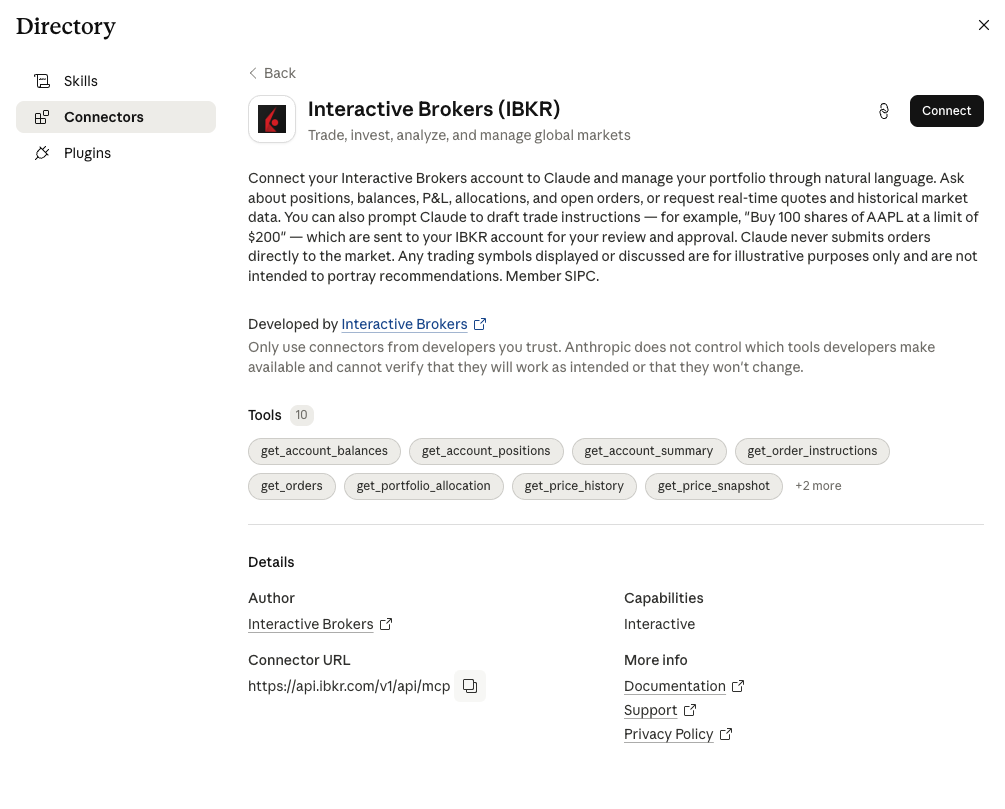
In Claude.ai, go to Settings → Connectors (sometimes Customize → Connectors depending on your UI) and search for Interactive Brokers. You should see Interactive Brokers (IBKR) with a short description, a list of what it can access, and a Connect button.
Step 3: Connect from Claude — you log in on IBKR's site
Click Connect and Claude sends you to IBKR's own login screen, not a password field inside Claude. That's on purpose: your credentials stay with the broker. Enter your username and password on IBKR, and double-check Live vs Paper before you sign in.
Step 4: Authorize one account
Finish the OAuth-style authorization for a single account. If you have several IBKR accounts, choose the one you want Claude to read and draft against.
Step 5: Set tool permissions (manual approve)
Back in Claude, open the IBKR connector's tool permissions and prefer "ask each time" over "always allow," especially for anything order-related. You can loosen read-only tools later if the prompts get annoying, but I'd start strict.
Step 6: Start with read-only prompts
Before you ask Claude to draft anything, sanity-check that the read access matches what you see in IBKR:
- "What are my current positions?"
- "Show my account balances and today's P&L."
- "What's my allocation across sectors?"
- "What's AAPL trading at right now?"
If the numbers don't line up with Client Portal or the mobile app, fix that before you test drafts.
Step 7: Draft your first instruction (small and obvious)
When you're ready to test drafting, try something tiny you'd actually submit, like: "Draft an instruction to buy 1 share of [ticker] at market, day order."
Claude should create an instruction, not execute it. Then open IBKR → Orders & Trades → AI Instructions. You'll usually see a banner that the drafts came from your AI provider, so read carefully. Each row shows symbol, side, quantity, order type, and expiry (often 7 days). Reject or Review & Submit from there.
Step 8: Build a habit around the queue
After any drafting session in Claude, I check AI Instructions in IBKR before I assume nothing is pending. Stale drafts expire and rejected ones disappear, so I treat the queue like email and try to get to inbox zero before I log off.
Step 9: Use Claude for thinking, IBKR for clicking
My split is simple: Claude for synthesis ("summarize my tech overweight," "bull/bear on this ETF," "compare these three limit prices") and IBKR for anything with legal and market finality. If a draft looks wrong, I fix it in the review flow or reject and re-prompt instead of arguing with the model and skipping the ticket.
Additional Reading
Here are some related guides to check out:
Frequently asked questions
- Can Claude place trades in my Interactive Brokers account?
- No, and that's the point of this connector. Claude can pull your portfolio and write up orders, but it only stages them as drafts in IBKR's AI Instructions queue; you still open the queue and tap Review & Submit or Reject yourself. Nothing hits the market until you click. This isn't financial advice, just how the official connector works.
- How is IBKR's Claude connector different from Robinhood's agentic trading?
- They take opposite approaches. Robinhood lets an agent actually place trades inside a funded sandbox account, while IBKR is draft-only: Claude does the research and paperwork but you keep the final click. IBKR feels more like a sharp analyst handing you a draft than a bot trading while you sleep. Pick based on how much autonomy you're comfortable with.
- How do I connect Interactive Brokers to Claude safely?
- You need an existing IBKR account, then in Claude go to Settings → Connectors, find Interactive Brokers, and click Connect. You log in on IBKR's own site, not inside Claude, so your credentials stay with the broker. Check the Live/Paper toggle before signing in, authorize one account, and set the order-related tools to "ask each time" rather than "always allow." Start with read-only prompts to confirm the numbers match before you draft anything.